
J-Tech Digital
Model: JTECH-VWM04
JTD-ID: 593
Overview:
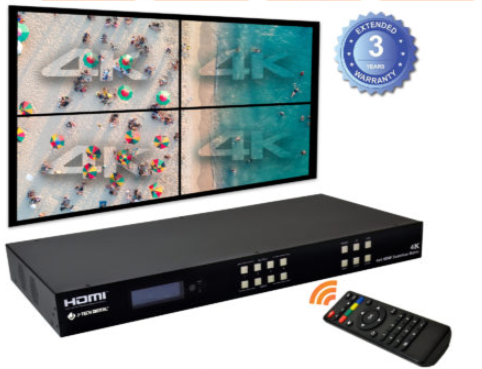
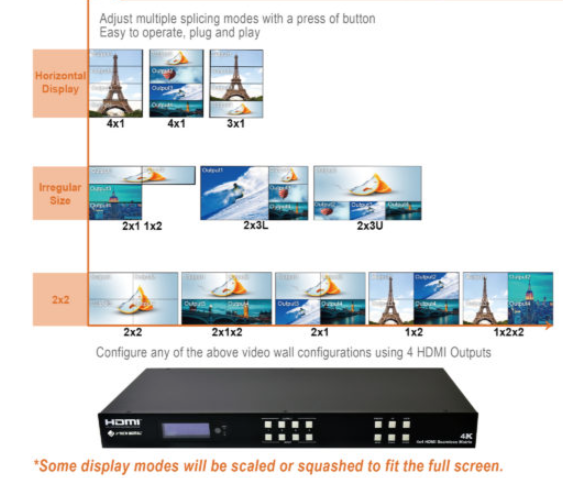
The JTECH-VWM04 is a 4K 60Hz seamless video wall controller that allows for a combination of any input to go to any output. Each HDMI output can choose from 5 different multi-viewer presets, 2×2, 1x3L, 1x3U, 1×4, 4×1. In addition to these, each output can be rotated or flipped 180°. This unit can either upscale or downscale content to match 4K or lower output resolutions. The VWM04 has a free lifetime warranty through J-Tech.
Application:
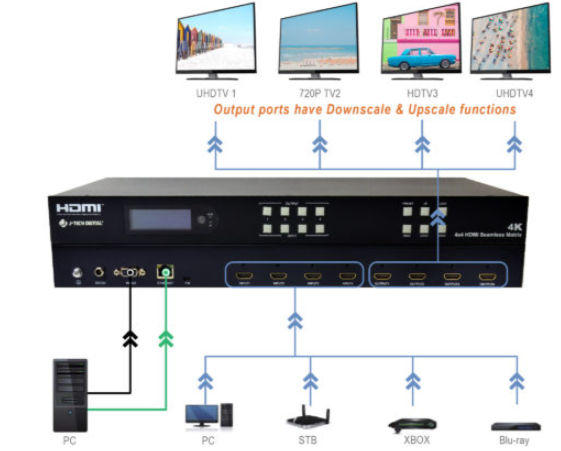
- Connect up to 4 input sources to up to 4 outputs in any combination, with a maximum bandwidth of 4K 60Hz.
- Control the unit through RS342 or the Ethernet port with a PC.
- Load any necessary firmware updates through the firmware update port.
Setup:
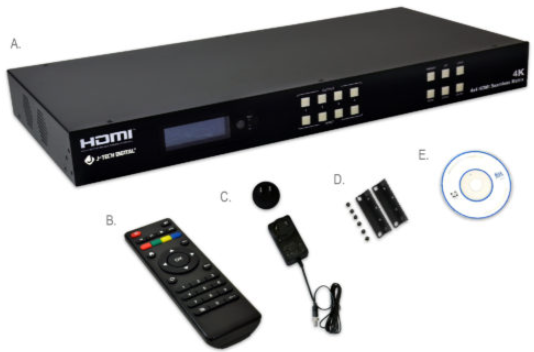
- Prior to powering on, connect all HDMI cables from their necessary source devices to HDMI IN 1 - 4.
- Connect the outputs, starting from the upper left of the video wall first, to the lower right of the video wall last.
- Connect any RS232 or Ethernet peripherals as necessary.
- Update any firmware as necessary.
- Power on the device and use as intended.
Troubleshooting:
- Power
- If the device is not receiving any power, be sure to try a different outlet or surge protector. If there is still none, contact support, as the power adapter or unit may require replacement.
- Video
- If one or more sources are not providing video, while others still appear to function as intended, confirm the functionality of the cable going into the HDMI IN from that device.
- If one or more outputs are not providing video, while others still appear to function as intended, confirm the functionality of the cable going into the HDMI IN of that display.
- If no inputs are showing up on any of the outputs, confirm that all displays are showing the correct input (I.E. Input - HDMI 1, 2, 3, 4). Confirm whether or not the unit is receiving power. If there is no power, refer to troubleshooting step 1. If there is power, the unit may require replacement.
- If video is being displayed, but they are jumbled or are in an incorrect order, readjust the output HDMI cables located on the back of the unit until the picture is coherent.
- Audio
- If no audio is being provided to one or more displays while others work, confirm the functionality of the associated, non-working audio display's HDMI cable.
- Firmware
- If the website has a new firmware update for the unit, you can update it through the firmware port on the rear of the unit.
Comments
0 comments
Please sign in to leave a comment.