
Please see the product manual, to configure your network settings of your encoder, before attempting to stream content to the following services. If you would like to request more services please email: support@jtechdigital.com
YouTube Live
Access your YouTube Live settings (Figure 1) and combine your “Server URL” and “Stream name/key” (separated by a forward slash "/").
Full RTMP URL Example: rtmp://a.rtmp.youtube.com/live2/zc3e-yw22-bbdw-baeg
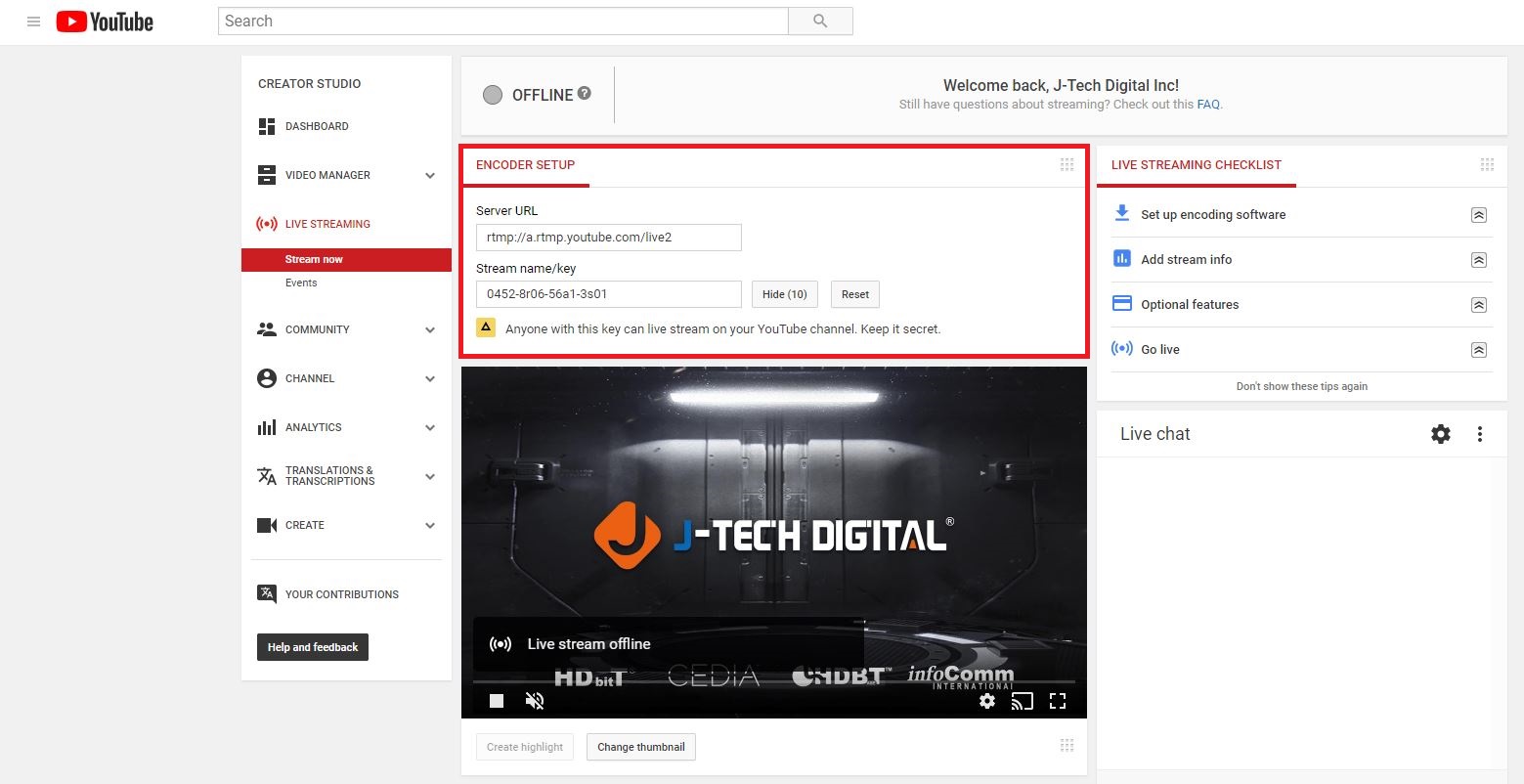
Figure 1.
Enter the full RTMP URL into the “RTMP PUBLISH URL” setting (Figure 2) of your J-Tech Digital Encoder; apply and reboot.
Note: For best results, check that in the advanced encoder settings that “TS muxer” is set to “Compatible with FFMPEG”

Figure 2.
Check “Stream Health” in YouTube (Figure 3) and adjust settings accordingly, per your specific stream requirements.
Note: Use Google’s DNS servers (8.8.8.8 and 8.8.4.4), in your encoder’s network settings for best results.
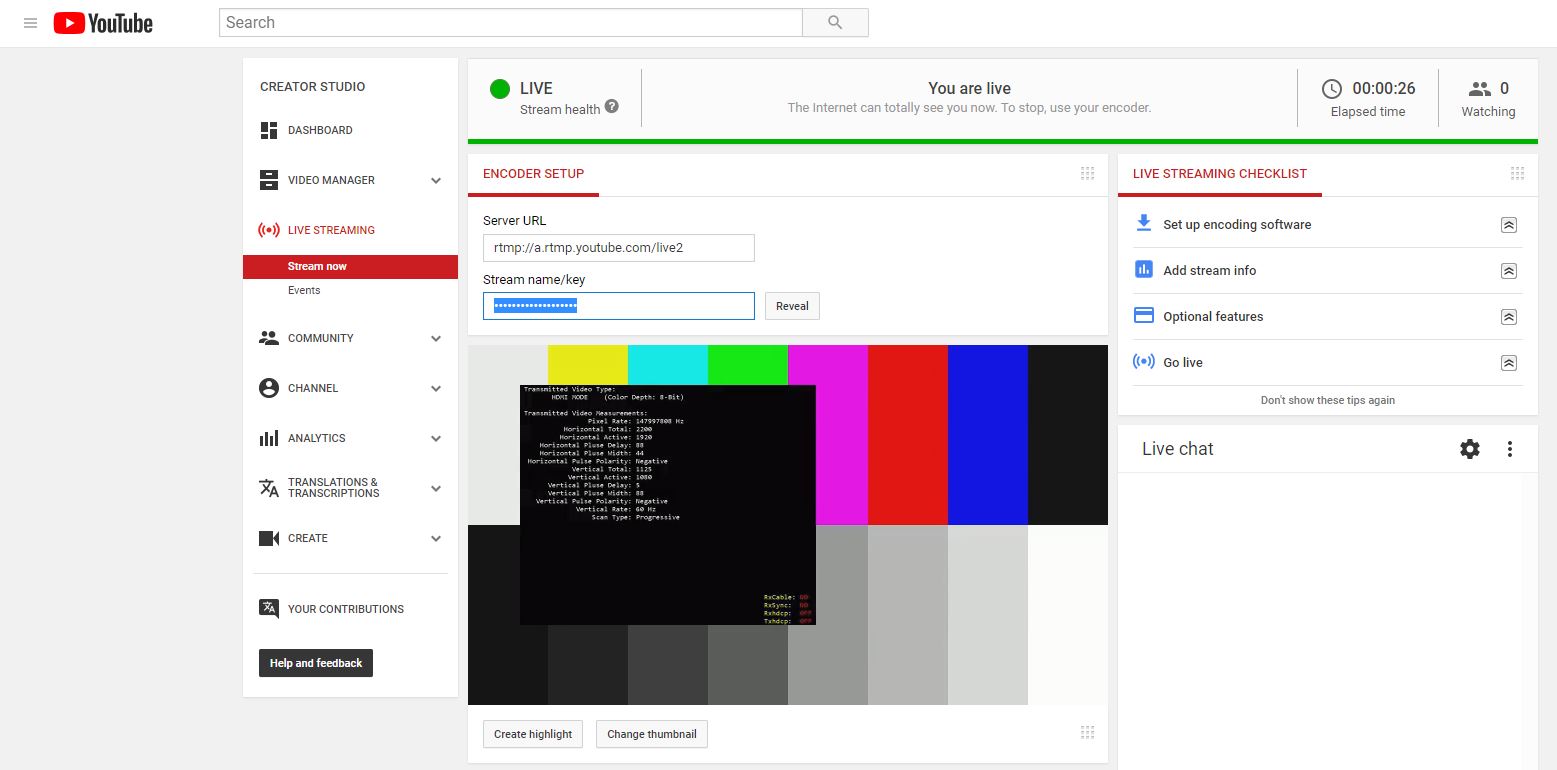
Figure 3.
Facebook Live
Navigate to your Facebook Live settings and combine your “Server URL” and “Stream name/key” (Figure 4)
Full RTMP URL Example: rtmp://live-api-a.facebook.com:80/rtmp/1710744775624100?ds=1&a=AThBmqbpmbMZ1Wn1
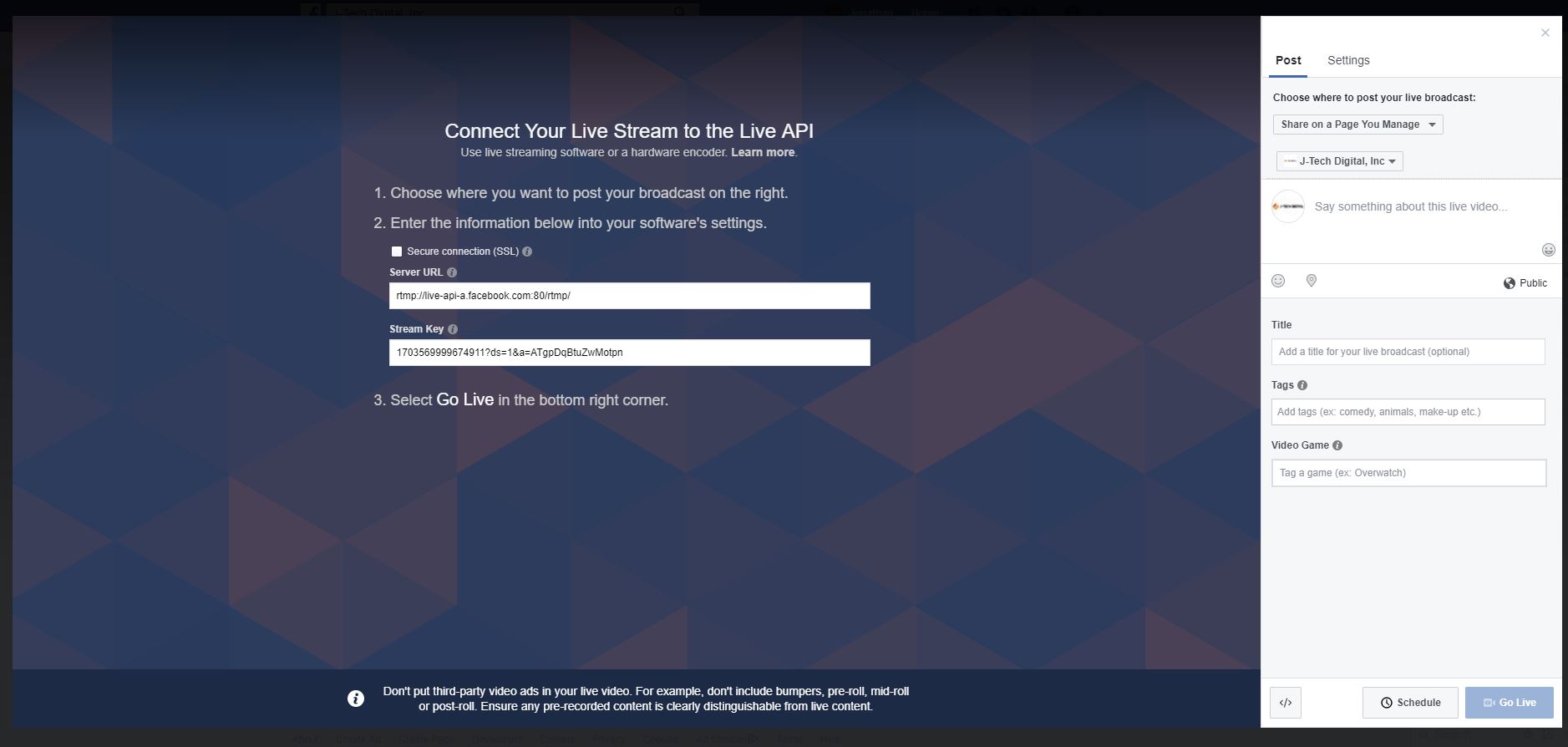
Figure 4.
Enter the full RTMP URL into the “RTMP PUBLISH URL” setting (Figure 5) of your J-Tech Digital Encoder; apply and reboot.
Note: For best results, check that in the advanced encoder settings that “TS muxer” is set to “Compatible with FFMPEG”

Figure 5.
Check “Preview” in Facebook Live (Figure 6) and adjust settings accordingly, per your specific stream requirements.
Note: Facebook will not stream any video signal that does not have an audio track.
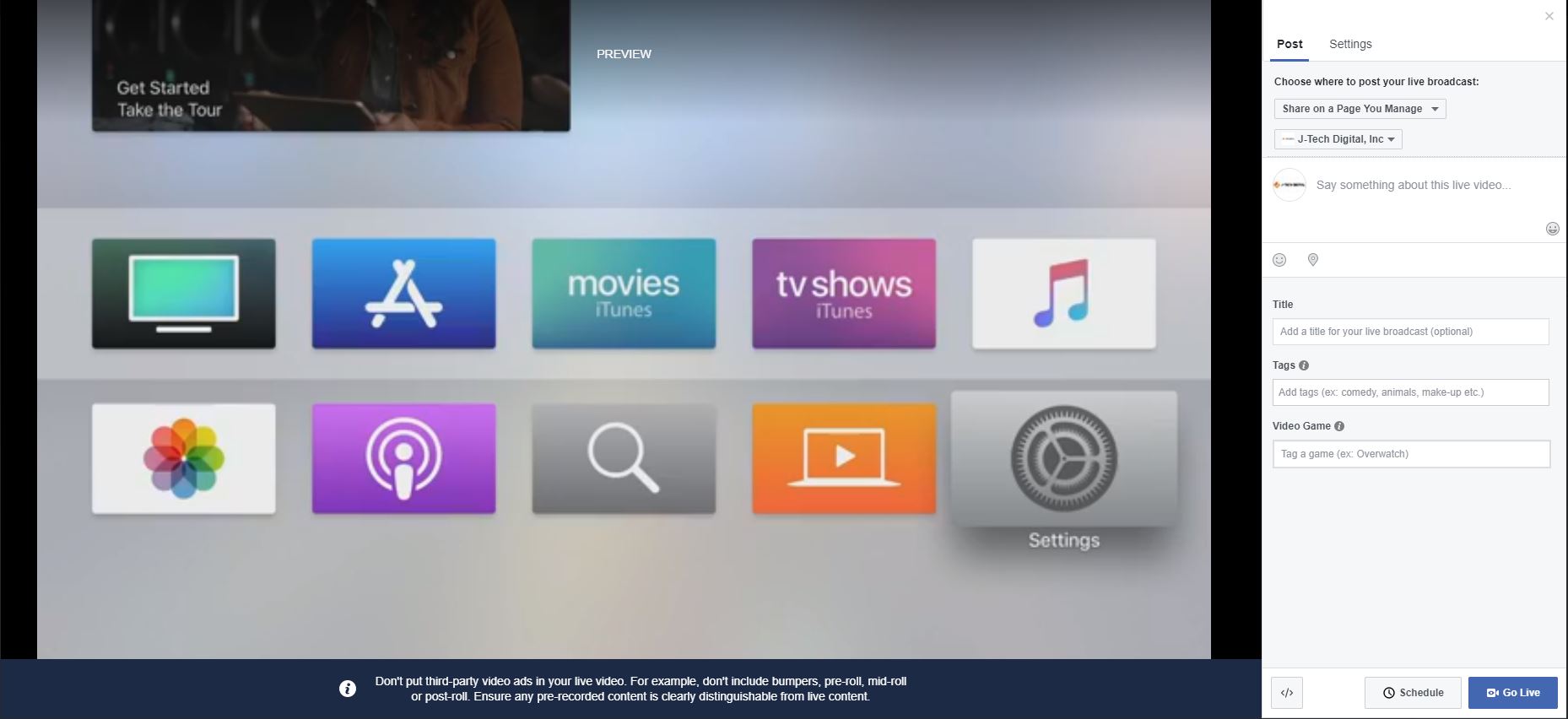
Figure 6.
DaCast
After creating a live channel, navigate to your "Encoder Setup" settings (Figure 7). Look in section 3 for your stream URL settings.
Example Format: RTMP://(login):(password)@(stream url)/(stream names)
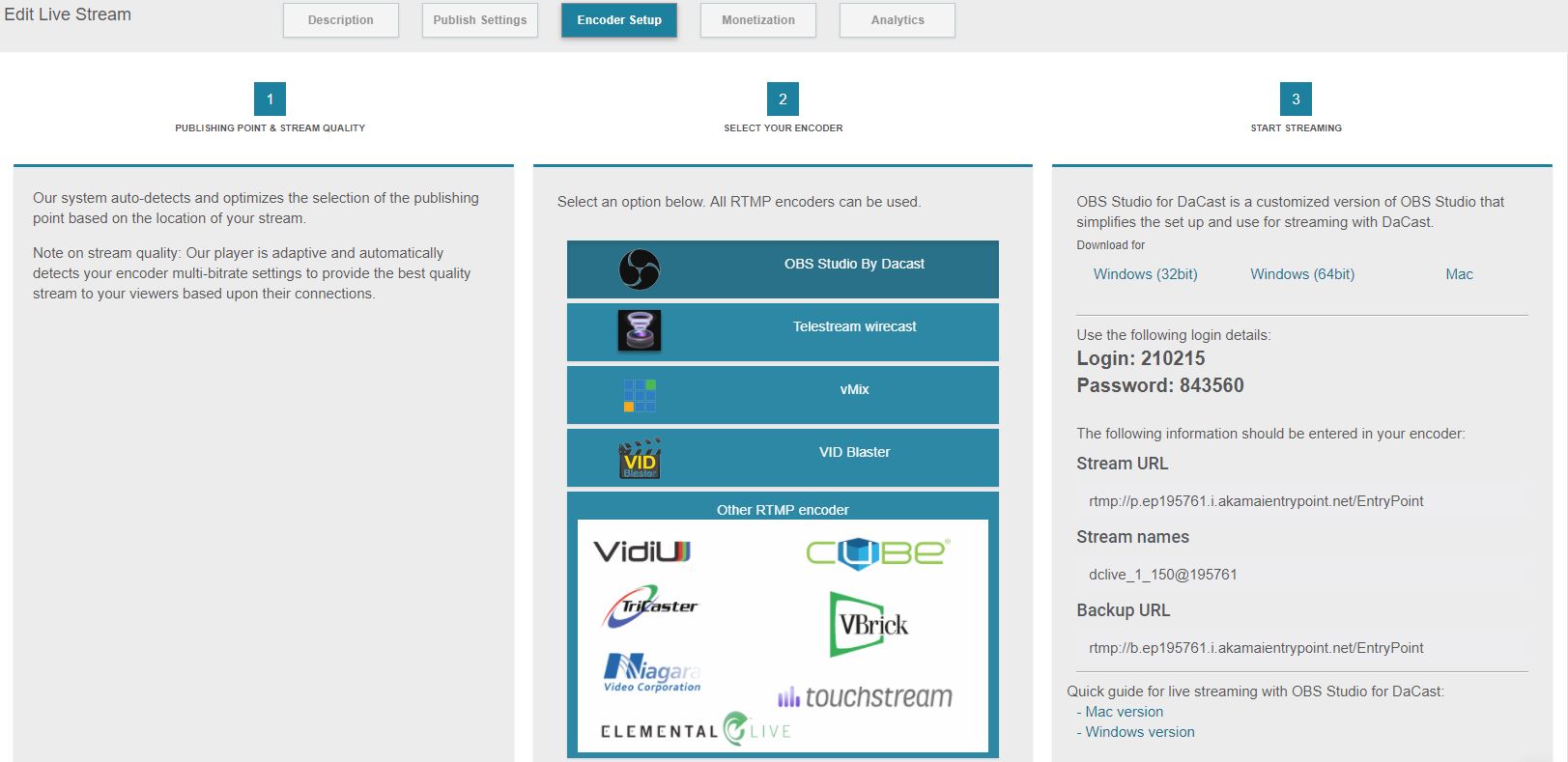
Figure 7.
Enter the full RTMP URL into the “RTMP PUBLISH URL” setting (Figure 8) of your J-Tech Digital Encoder; apply and reboot.
Note: Use Google’s DNS servers (8.8.8.8 and 8.8.4.4), in your encoder’s network settings, for best results.

Figure 8.
To test the RTMP stream, click on the blue preview button at the bottom of your DaCast settings (Figure 9).
Note: For best results, check that in the advanced encoder settings that “TS muxer” is set to “Compatible with FFMPEG”
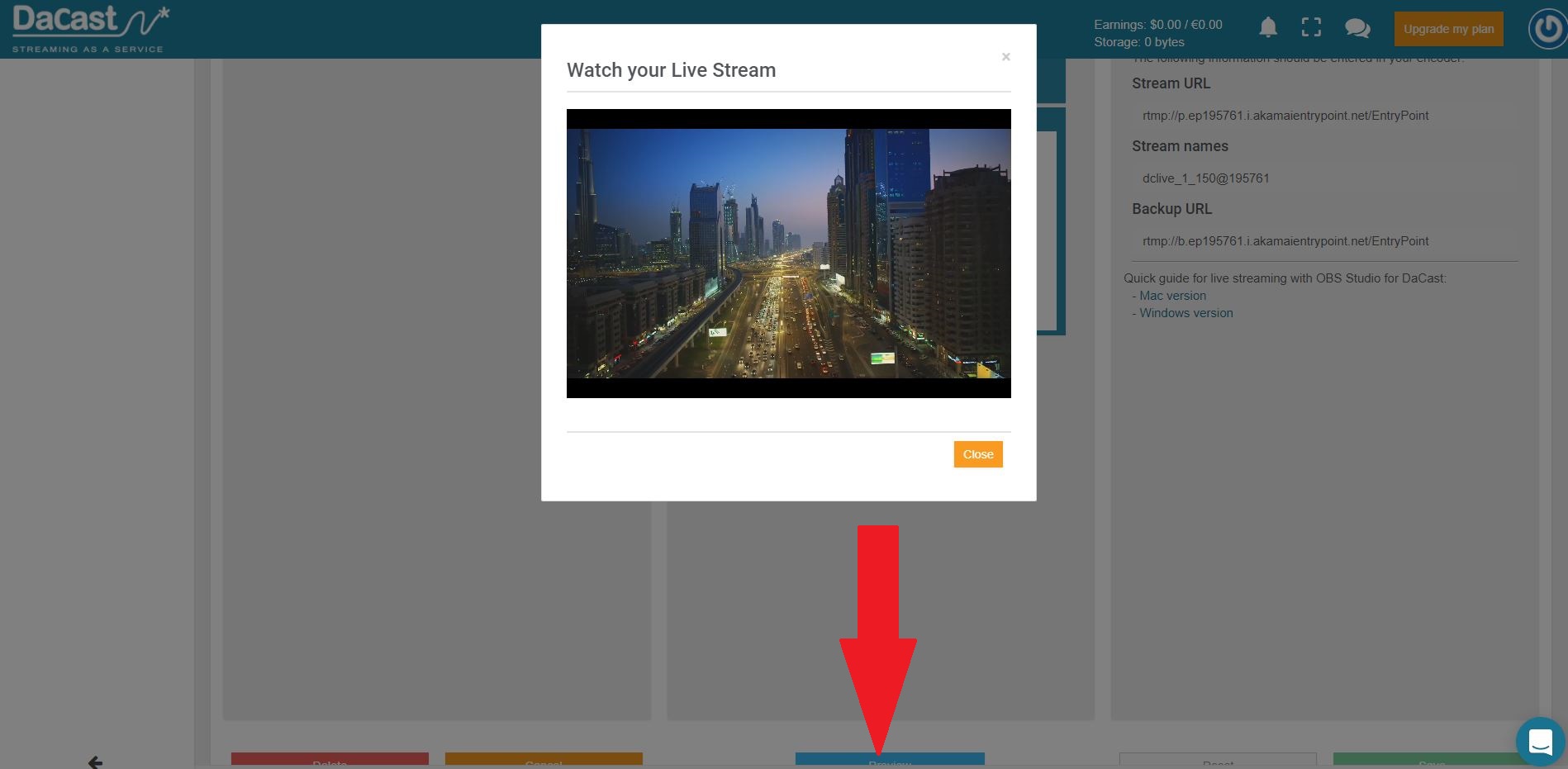
Figure 9.
IBM Cloud Video/Ustream
Access your Ustream broadcast settings (Figure 10) and combine your “RTMP URL” and “Channel Key” (separated by a forward slash "/").
Full RTMP URL Example: rtmp://1.23493389.fme.ustream.tv/ustreamVideo/23493389/ur84eksfbUCaJZwk77KcGNJB9ReSCGkl
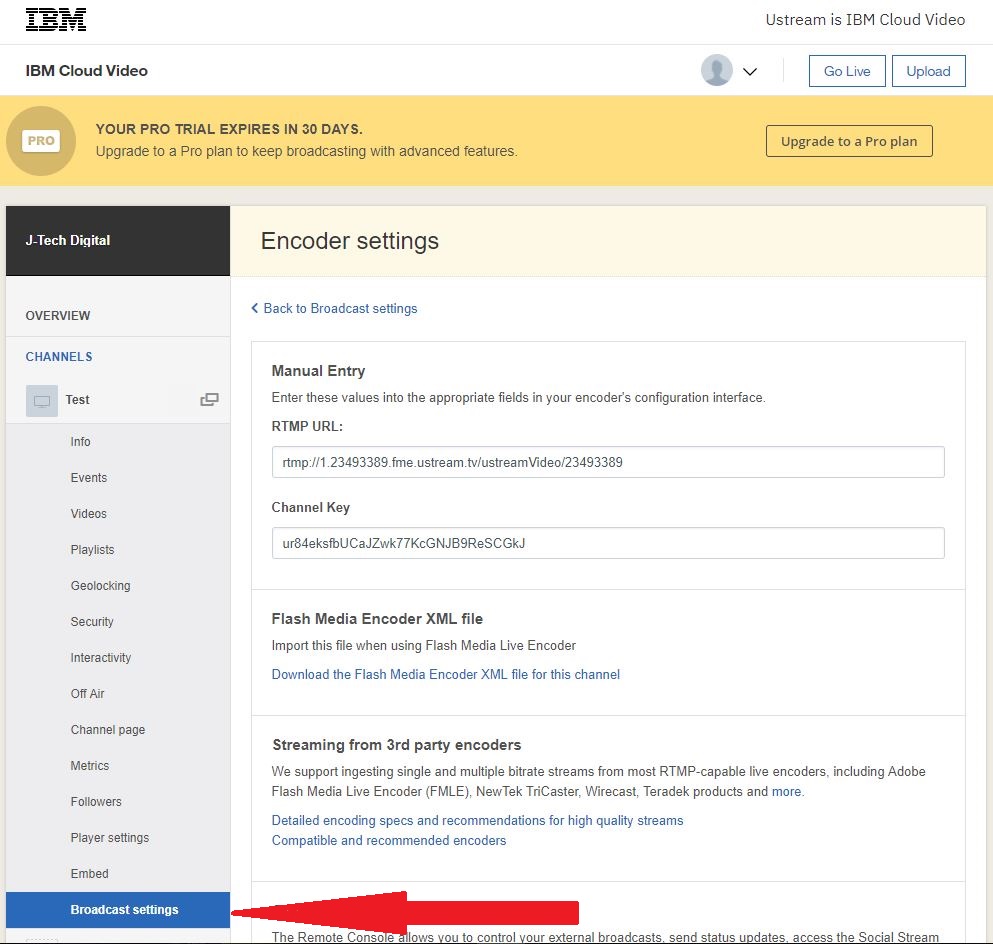
Figure 10.
Enter the full RTMP URL into the “RTMP PUBLISH URL” setting (Figure 11) of your J-Tech Digital Encoder; apply and reboot.
Note: Use Google’s DNS servers (8.8.8.8 and 8.8.4.4), in your encoder’s network settings, for best results.

Figure 11.
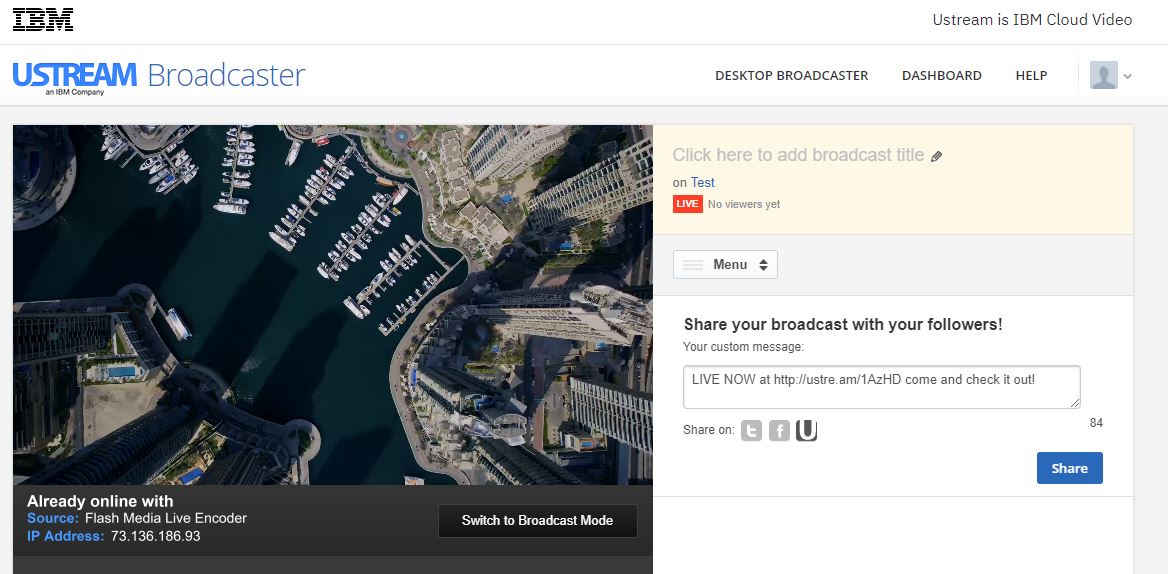
Check the Ustream Broadcaster (Figure 12) for a video stream.
Twitch
Click HERE and select an ingest server from Twitch. Then navigate to your Twitch stream key settings and combine your “Server URL” and “Stream name/key” (Figure 13)
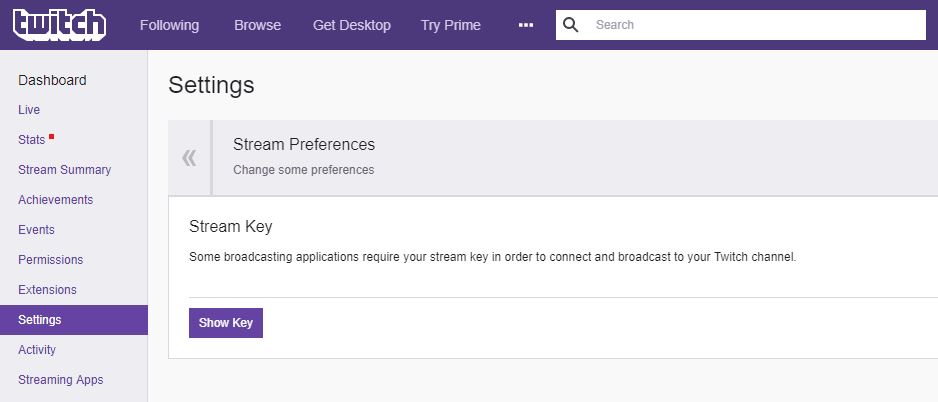 Figure 13.
 Note: Use Google’s DNS servers (8.8.8.8 and 8.8.4.4), in your encoder’s network settings, for best results.

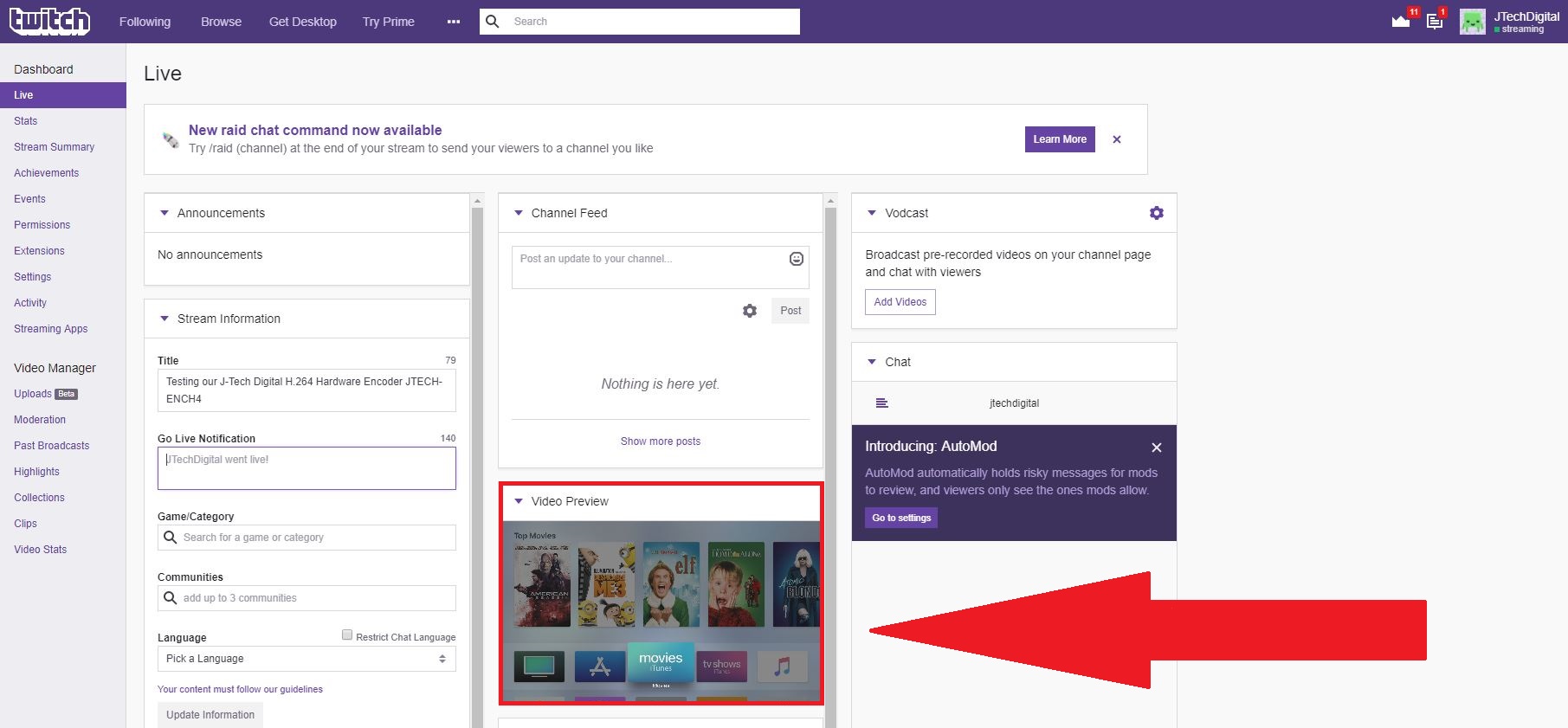
Note: All images used in this guide are for reference only and may not reflect your exact application.
J-Tech Digital Support Team
1-888-610-2818
support@jtechdigital.com
Mon-Fri 9AM-5PM (CT)
Comments
0 comments
Please sign in to leave a comment.