
J-Tech Digital
Model: JTECH-MXT40
JTD-ID 564

Overview:
The JTECH-MXT40 will distribute any connected compatible source device signal to any compatible display via single Cat5/6 ethernet cable. All output displays can share the same source or each output can be treated individually & display its own unique source signal. 4 Local HDMI outputs mirror your 4 HDBaseT outputs for a total of 12 displays (2 HDMI outputs per HDBaseT receiver). Local HDMI Outputs support 4K 60Hz 4:4:4 Dolby Vision signals. HDBaseT Outputs support 4K 60Hz 4:2:0. A wide range of digital audio formats are also supported. Including LPCM, DTS-HD and Dolby TrueHD. This unit also follows HDMI 2.0 standard & HDCP 2.2/1.4 compliance. Included HDBaseT receiver units receive power from the main matrix device via PoC (Power Over Cable).
Setup:
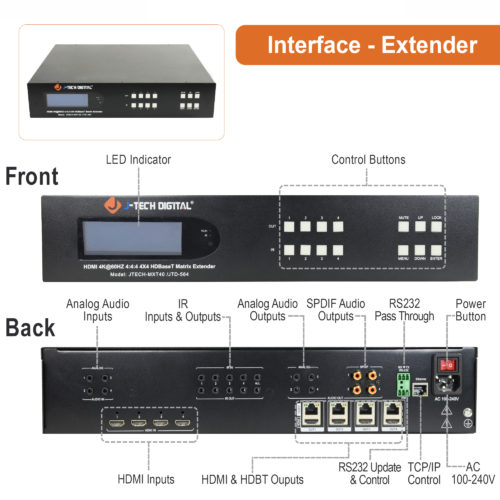
- Plug the male end of the 100/240v power adapter into a surge protected wall outlet. Then plug the female end into the unit. flip power switch.
- Plug in source devices to respective HDMI inputs
- Use power switch to power on the unit.
- Using the front LCD screen directly press the number key, such as the output channel 3, select the key "3"
- Then, directly press the number key, such as input channel 1, and select "1" to press (only when
the output port is selected, the input channel number will be valid) - Connect properly terminated cat5e/6 cable to HDBT outputs.
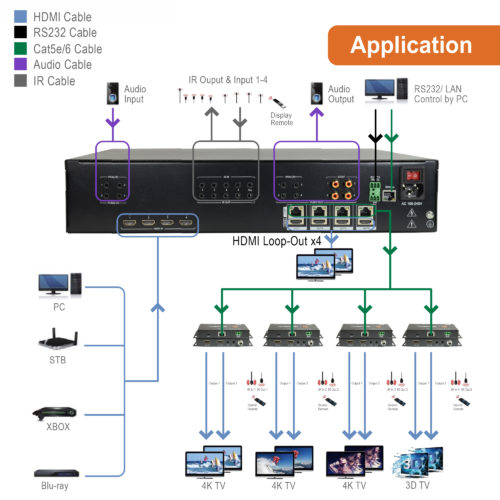
- Connect Cat5e/6 cable to receivers.
- Connect receivers to respective displays.
Application:
Troubleshooting:
- If not receiving power to matrix:
- Verify power plug is connected properly.
- Test a different power wall outlet.
- Ensure power switch is in the correct position.
- If not receiving a video signal to display:
- Verify HDMI cable connected to source is connected properly to the transmitter.
- Test a different HDMI cable on both the source device and display
- Verify your input source is outputting at a compatible resolution.
- Make sure all Cat5e/6 cables are properly terminated.
- Copy EDID information from display
- Test different source devices
- Make sure HDCP protocol is compatible.
- If not receiving audio to sound devices:
- Check audio format of source devices and verify they are set to a supported format.
- Test a different SPDIF cables.
- Look at audio Imbedding mode and make sure it is compatible/not muted.
- If not able to access web interface:
- Make sure you are connected to the network port on the matrix with RJ45 cable.
- Make sure you have set your computers IP address to match the scheme of the default IP of the unit.
- Make sure you are inputting correct user name and password to the login. (User Name: admin; Password:123456)
For Support:
Call: 888-610-2818
Email: support@jtechdigital.com
Comments
0 comments
Please sign in to leave a comment.