
J-Tech Digital
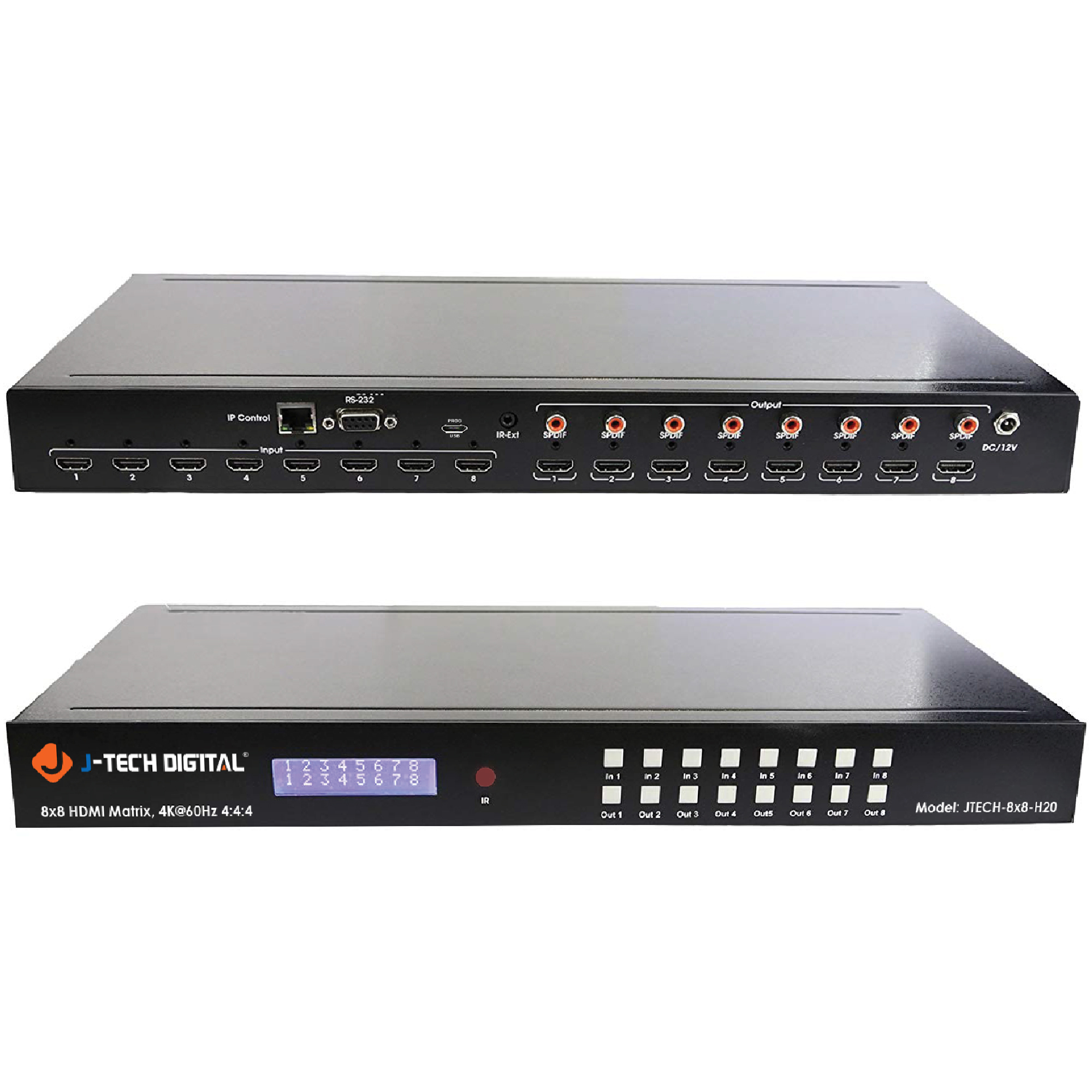
Model: JTECH-8X8-H20
JTD-ID 279
Overview:
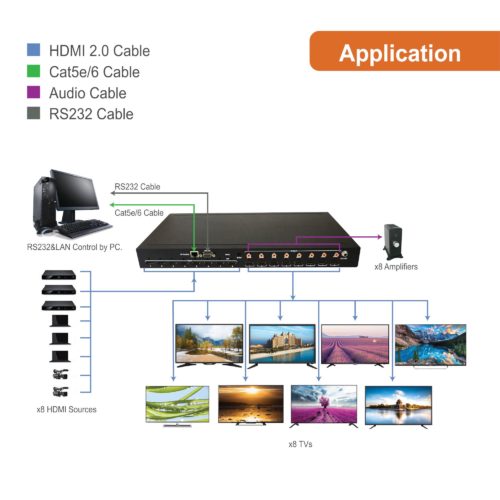
The JTECH-8X8-H20 is a 8X8 matrix switch that support up to 4K/@60Hz 4:4:4. It allows up to 8 HDMI independent source devices to independently switched to 8 HDMI monitors, HDTVs, or projectors. The 8 displays can either show the same signal or 8 different signals whether the source has HDCP or not. Each HDMI output also has it's own SPDIF audio out put as well. The audio formats this unit supports are LPCM, DTS HD, and Dolby trueHD. Compliant with latest HDCP 2.2/1.4. Includes independent switching EDID settings for choosing which resolution to display. This matrix can be controlled via panel buttons, RS232 serial port, Ethernet, or IR control, PC application , and a Control 4 driver is available.
Setup:
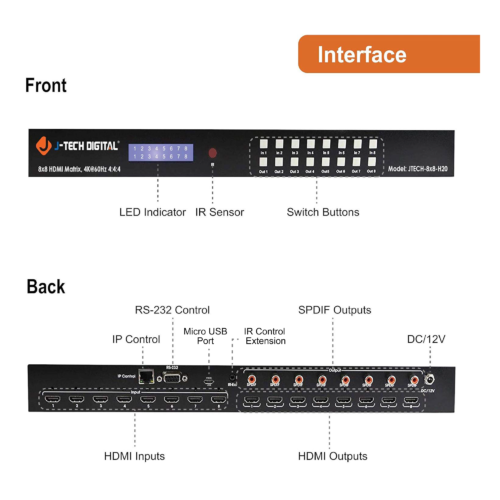
- Remove matrix and power adapter from packaging and plastic covering.
- Place matrix in a convenient and well ventilated place.
- Connect DC/12V power cable to back of unit and connect to power outlet.
- Connect HDMI source into HMDI in port of matrix (up to 8 source devices).
- Connect display to HDMI out port on matrix (up to 8 display devices).
- For audio connect SPDIF digital audio cable to coaxial outputs to audio devices. (Up to 8 devices)
- For RS232 control, connect RS232 to USB cable from your PC to RS232 In port on matrix.
- For IP control, connect Cat5e/6 cable from your PC to the LAN port on the matrix.
- For IR control, connect IR extension cable to IR Control port.
- Enjoy quality audio and video.
Application:
Troubleshooting:
- If not receiving power to matrix:
- Verify power plug is connected properly.
- Test a different power wall outlet.
2. If not receiving a video signal to display:
- Verify HDMI cable connected to source is connected properly to extractor.
- Verify HDMI cable connected to display is connected properly.
- Test a different HDMI cable on both the source device and display.
- Try another input on TV or monitor display.
- Test a different input port on the matrix.
- Test a different source device.
- Verify output resolution and refresh rate from source device is compatible to what extractor can support.
- Verify display can support resolution and refresh rate the source device is outputting.
- Lower resolution source device is outputting.
- Test a shorter HDMI cables on all the source devices and displays.
3. If not receiving audio to sound devices:
- Check audio format of source devices and verify they are set to a supported format.
- Test a different sound devices.
- Test a different SPDIF cables.
For Support:
Call: 888-610-2818
Email: support@jtechdigital.com
Comments
0 comments
Please sign in to leave a comment.