
J-Tech Digital
Model: JTD18G-H5CH2
JTD-ID 350

Overview:
The JTD18G-H5CH2 is an audio extractor that de-embeds digital audio signal from an HDMI source device or HDMI ARC capable display. Extractor also converts the extracted audio signal into an analog stereo(3.5mm) or digital optical format. Also supports up to 4K resolution at 60Hz & HDR10. The extractor is HDCP1.4 and 2.2 compliant for full compatibility with newer audio-video & streaming devices. Use built-in EDID settings (2CH/5CH/TV) de-embed the correct audio format for your application. This unit can be used with older AV receivers and amplifiers that may not have HDMI inputs and ARC outputs.
Setup:
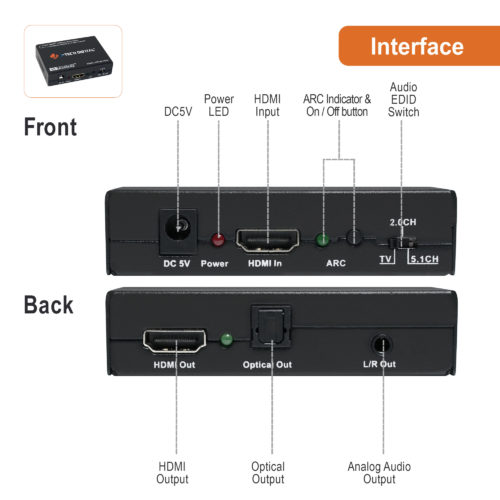
- Remove isolation plastic from extractor and power adapter.
- Place the extractor somewhere convenient.
- Plug in DC5V power adapter to extractor.
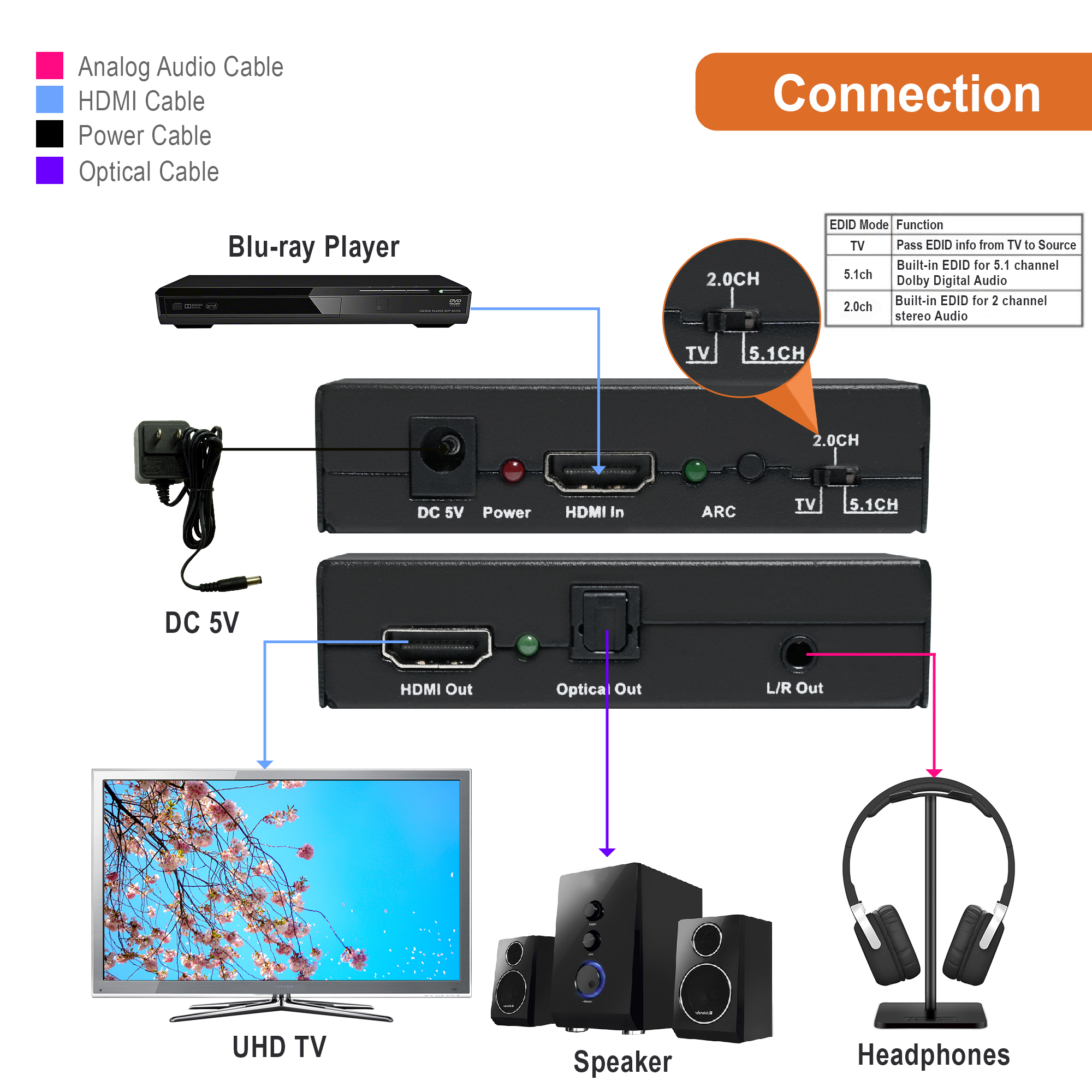
- Connect HDMI source device to HDMI in port of extractor.
- Connect display to HDMI out port.
- For digital audio, connect TOSLINK/Optical cable to optical out port to send audio to AV receiver, amplifier, or sound bar. Set EDID switch to 2CH, 5CH, or TV.
- For analog audio, connect 3.5mm analog cable to L/R out port of extractor to send audio to headphones or speakers. Set EDID switch to 2CH.
- If using ARC function, connect display to HDMI out port of extractor. Push ARC button to engage ARC function.
- Connect TOSLINK/Optical cable to optical out port of extractor to send audio to AV receiver, amplifier or sound bar (audio will not output via L/R out port when ARC function is engaged).
- Enjoy quality audio.
Note* This unit does not downmix audio
Note** Ensure incoming signal is either stereo or Standard Dolby 5.1
Application:
ARC Application:
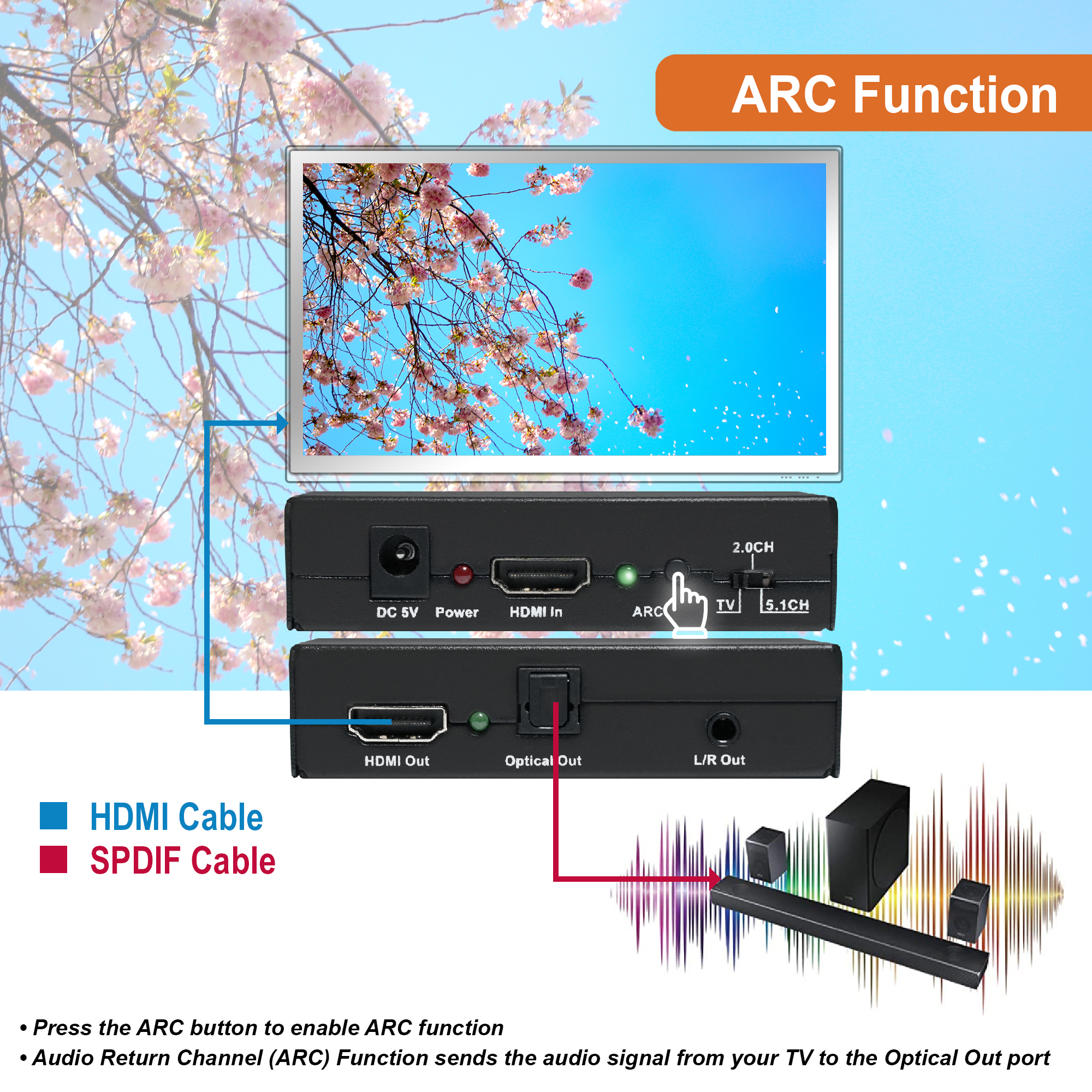
- ARC-Audio Return Channel. Allows you to send audio from TV to extractors optical out port.
- When using ARC, connect ARC port from TV to HDMI out port of extractor.
- TV audio format needs to be set to stereo or standard Dolby 5.1.
- When using ARC, you must use optical out port to send audio to sound device. This unit will not send HDMI ARC audio to analog out port.
Troubleshooting:
1. If not receiving power to extractor:
- Verify power LED is on.
- Verify power adapter is connected correctly to 5V power port.
- Test another power outlet.
2. If not receiving video signal to display:
- Verify HDMI cable connected to source is connected properly to extractor.
- Verify HDMI cable connected to display is connected properly.
- Test a different HDMI cable on both the source device and display.
- Try another input on TV or monitor display.
- Test a different source device.
- Verify output resolution and refresh rate from source device is compatible to what extractor can support.
- Verify display can support resolution and refresh rate the source device is outputting.
- Lower resolution source device is outputting.
3. If not receiving audio to audio sound device:
- Verify audio cables are connected properly to audio out ports and to sound devices.
- If sending audio via L/R analog port, verify audio format is set to 2CH/Stereo on source device and EDID switch is set to 2CH.
- If sending audio via optical out port, verify audio format is set to a supported format on source. device (DO NOT set audio format to Dolby Digital Plus).
- Toggle EDID switch between 2CH, 5CH, & TV.
- If using ARC function, make sure to use optical out port to send audio to AV receiver, amplifier, or sound bar.
- Verify ARC button is engaged.
For Support:
Call: 888-610-2818
Email: support@jtechdigital.com
Comments
0 comments
Please sign in to leave a comment.