
J-Tech Digital
Model: JTECH-4KSP2
JTD-ID 1834
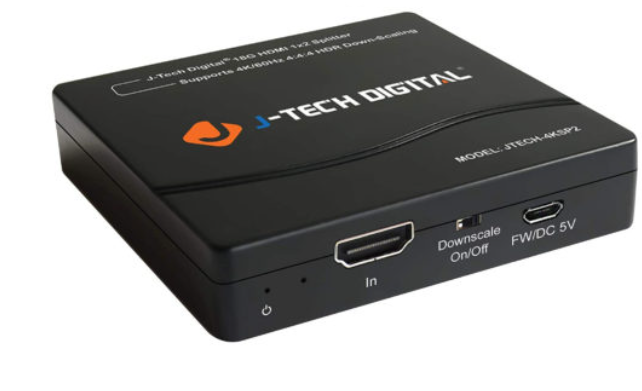
Overview:
The JTECH-4KSP2 1x2 HDMI splitter allows for the seamless splitting of one HDMI input signal (Cable/Satellite, Roku, Console, PC) to two HDMI output displays, simultaneously, with multi-resolution support that can be automatically detected and adjusted within the unit. In addition, the JTECH-4KSP2 has support for all HD audio formats, including Dolby Digital, Atmos and even Dolby+. The HDMI 2.0 port on the unit is capable of supporting bandwidth speeds of up to 18Gbps, which, of course, means support for 4K@60Hz with HDR10 and Dolby Vision at the full Chroma sample of 4:4:4. And of course, as with all of J-Tech's fine products, we offer free life-time technical support and a one year warranty on the unit.
Application:
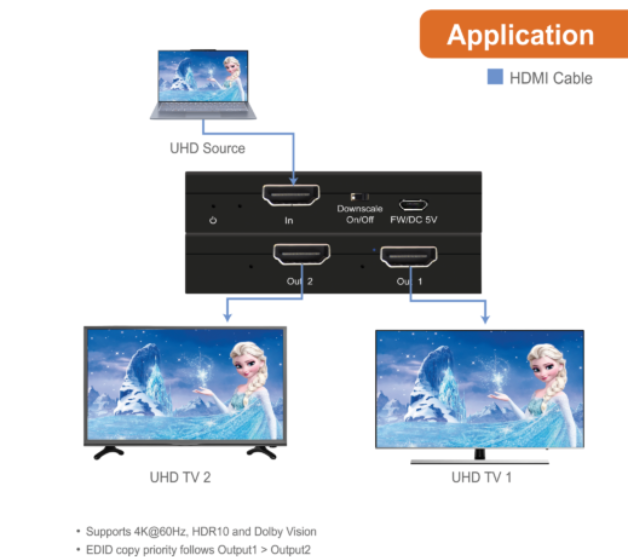
- Connect the Source device to the HDMI IN.
- Connect Output Displays to Out 1 and Out 2, prioritizing Out 1 for EDID copy.
- Enable or disable the auto Downscale function in the unit by toggling "Downscale" to On or Off.
Setup:
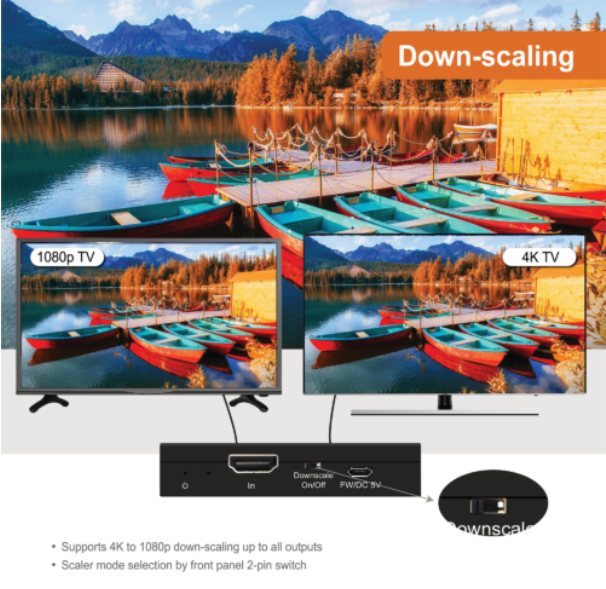
- This unit has support for multiple resolution setups.
- Setup 1: Out 1 - 4K, Out 2 - 4K | In this setup, no downscaling would occur.
- Setup 2: Out 1 - 4K, Out 2 - 1080p | In this setup, downscaling would occur, but only on port 2, as the ports operate based on priority.
- This unit will not downscale to 720p or lower and it will also not scale metadata. If an HDR source is being output, it will not be converted to SDR.
Troubleshooting:
- The power LED illuminates red to determine that power is being applied.
- In the event that the power LED is not red, the first thing to check would be ensuring that the power cable is properly seated.
- Second, check to see that the adapter is plugged into an outlet providing adequate power.
- If these two things are not the cause, a replacement adapter would be necessary.
- The input LED illuminates blue when there is an HDMI cable detected in the port.
- If the input LED does not illuminate, the first thing to check would be the quality and functionality of the cable in question by trying a new HDMI cable.
- The Output LEDs for Out 1 and Out 1 illuminate blue to indicate functionality.
- If one or both of the LEDs illuminate, but there is no picture on one or both of the displays or, if the LEDs do not illuminate at all, try the following.
- Try different HDMI ports on the display units.
- Once the ports have been tested, if there is no change, try rotating or changing out the HDMI cables.
- Provided these measures are unsuccessful, a replacement unit may be necessary.
- If one or both of the LEDs illuminate, but there is no picture on one or both of the displays or, if the LEDs do not illuminate at all, try the following.
- The Downscale switch can be adjusted to On or Off.
- If images and text appear blurry on one of the output displays, try turning the switch On.
- If this effect only occurs when the Downscale switch is set to On, try switching it to Off.
- The FW/DC 5V port serves as both a power connector port for the power adapter and a port to connect to for firmware upgrades.
- If you're experiencing issues with the unit that require a firmware upgrade, or if firmware would provide additional functionality to some part of the unit, you would use this port.
- While the unit does support all current Dolby audio, it will not pass Dolby or DTS through a PlayStation 4 console.
Comments
0 comments
Please sign in to leave a comment.