
Scenario: If you want to change the default IP of the JTECH-8X8-H20 HDMI Matrix
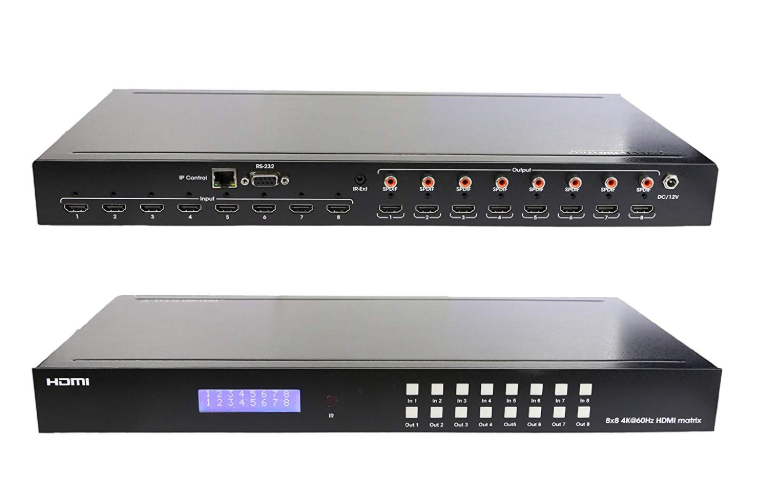
JTD-279 J-Tech Digital 8X8 HDMI Matrix Switcher 4K 60Hz 4:4:4
- Connect the power cable to the 8x8 Matrix.
- Connect an Ethernet cable (Cat5e/Cat6) to the TCP/IP port of the Matrix and to the port on your PC.
- On your desktop, Right-Click on the Network Icon on the bottom right & click “Open Network and Sharing Center”.

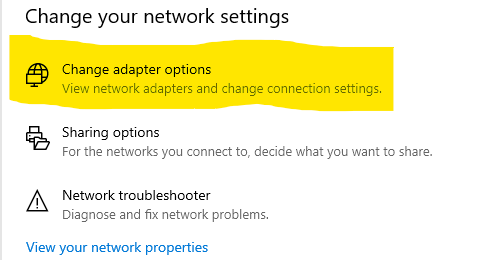
- Click “Change adapter settings”
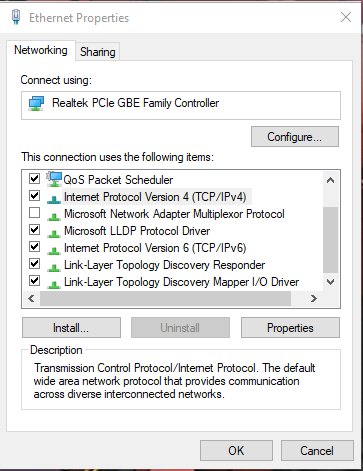
- Double-Click “Ethernet”

- Click “Properties”

- Click “Internet Protocol Version 4 (TCP/IPv4)” and then click “Properties”
- Change the IP address to 192.168.1.___ (1-254)
- In the “Subnet Mask” field, type “255.255.255.0”. “Default Gateway” can be left blank.
- Click “OK” to save your changes and then click “Close” for your changes to take effect.

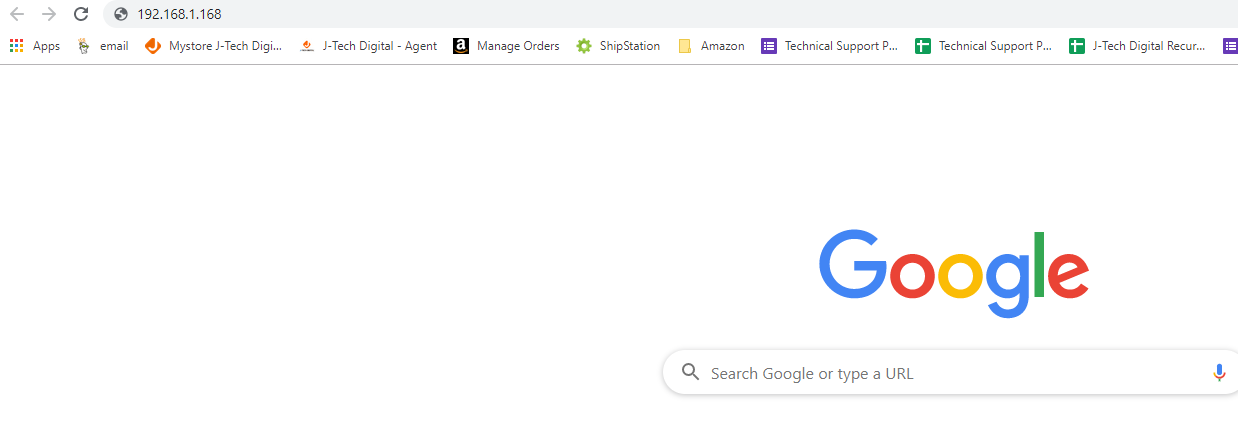
- Open a web browser and type the default IP 192.168.1.1.168 address for the HDMI Matrix.
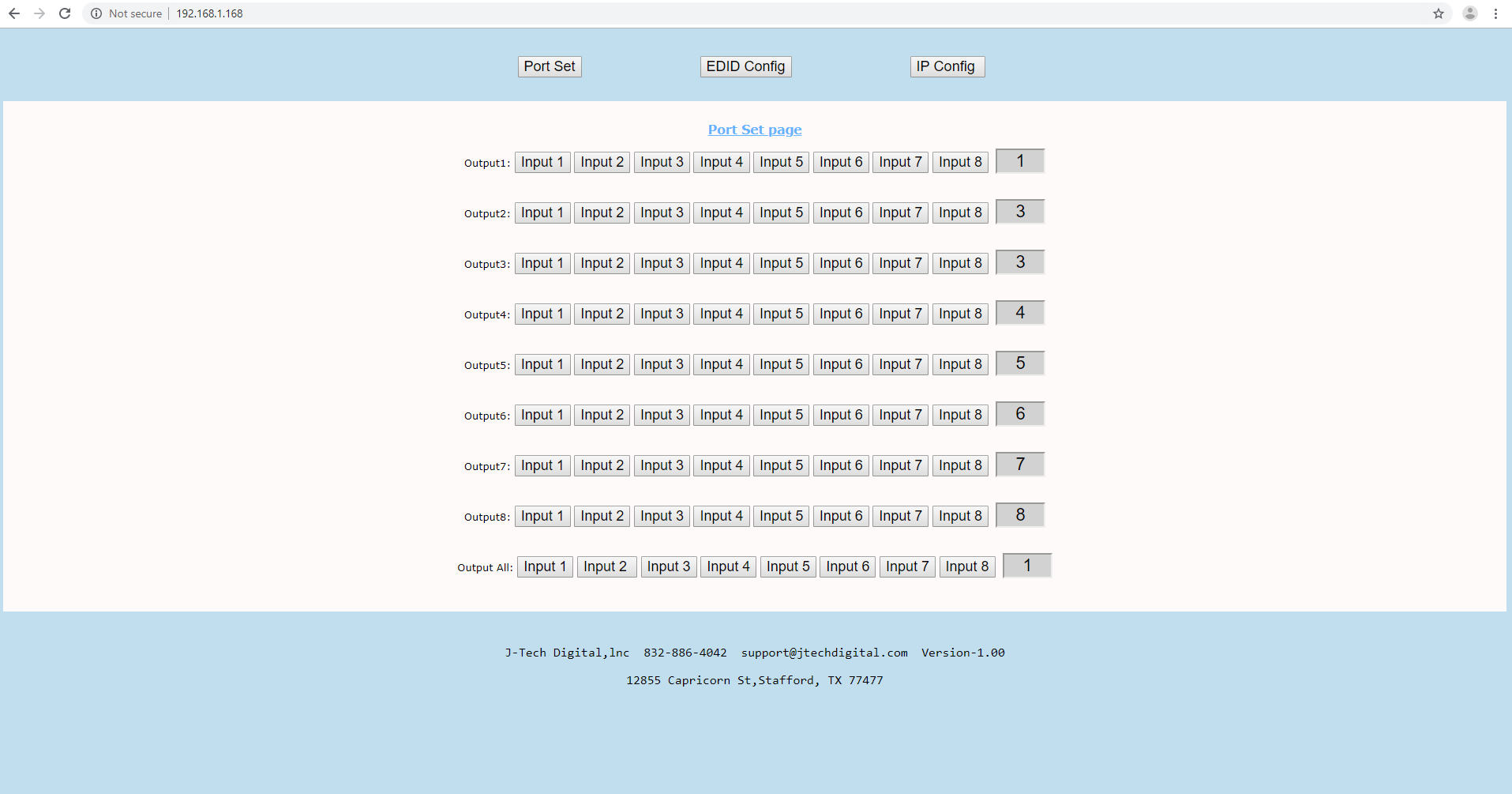
- Click “IP CONFIG”
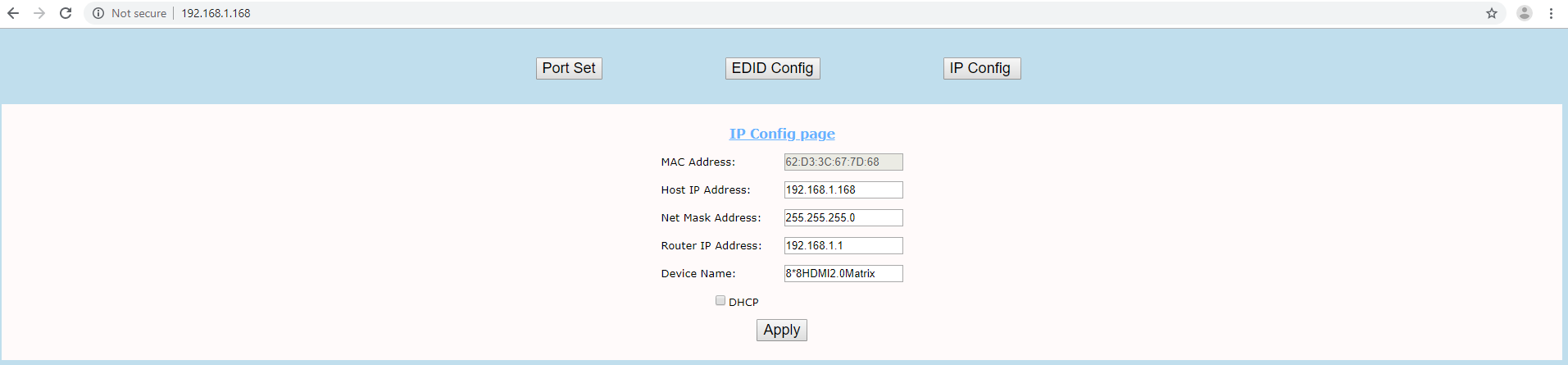
**To change addresses please note:
- IP addresses – It is necessary to change the last octet in an address (192.168.1.___)
- To confirm the changes, try accessing the GUI in an internet browser with new IP address.
- Finally make sure to go back to “adapter settings” and change the IP address of your network interface card back to “Obtain an IP address automatically” if your network is using DHCP

J-Tech Digital Support Team
1-888-610-2818
support@jtechdigital.com
Comments
0 comments
Please sign in to leave a comment.