
If you have already added the J-Tech Digital 8x8 Matrix to your existing network, odds are that you plan on using the smart phone application to access the Matrix as well. This article will show you how to change the necessary settings to get your iPhone or Android phone connected to the App. (Note: in order to find information on how to download the App, or how to access it, you can refer to the User Manual included with the Matrix.)
1) Plug in the power cord of the Matrix and then turn it on.
2) Search your available networks and select "Matrix88-3DCAT" (or it may also come up as "USR-WIFI232-B_9564) and connect to it.
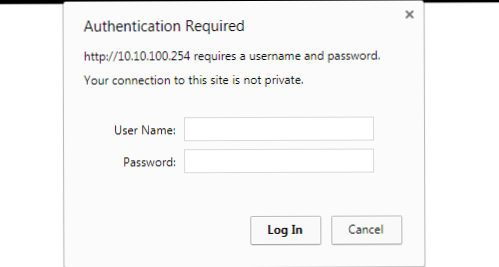
3) After connecting to the network, open up your web browser and type in "10.10.100.254" to log into the interface.

4) For the username enter "admin" and for the password enter "admin" as well.
5) You should now be logged into the interface. From the initial page (Quick Configure), go to the Application Setting on the left side of webpage.
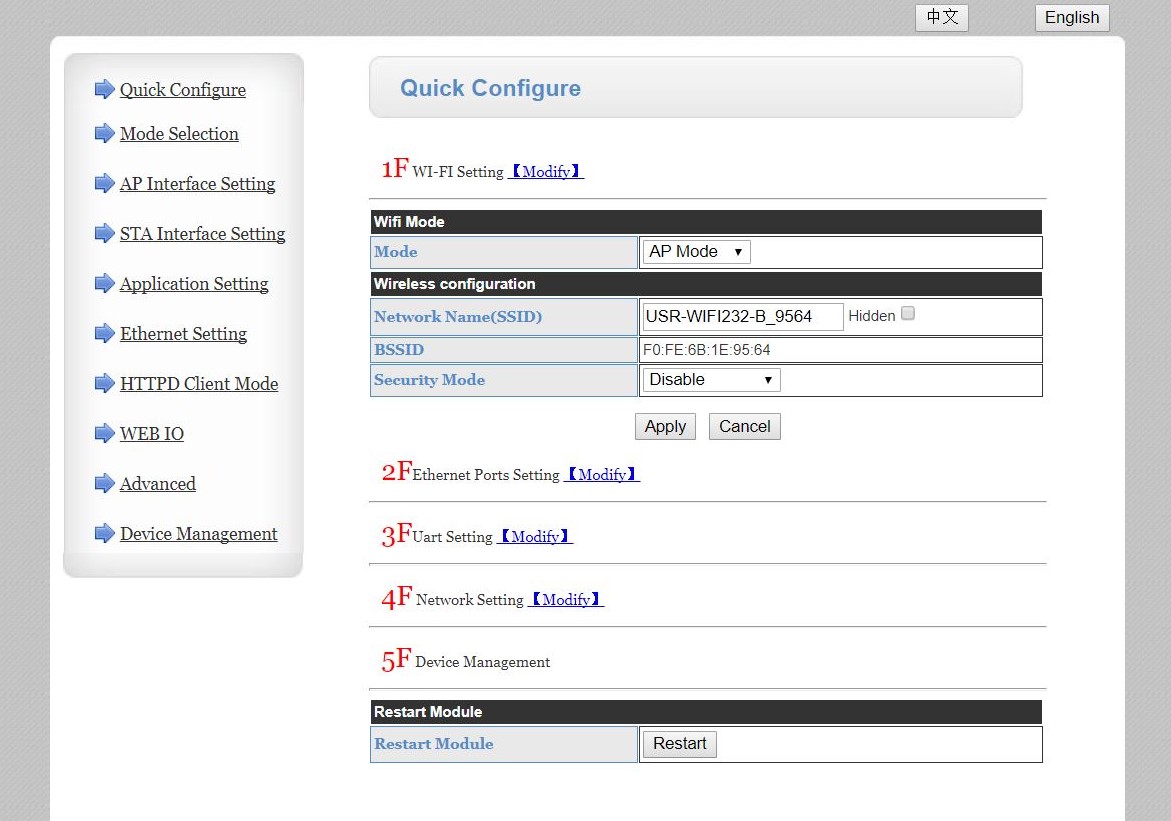
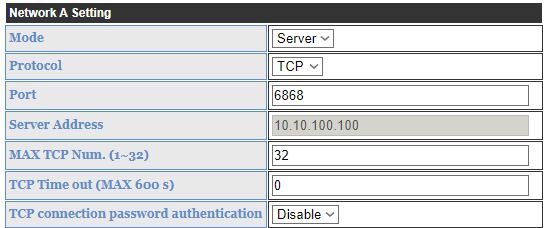
6) Now on the Application Setting tab, scroll down to the section labeled Network A Setting
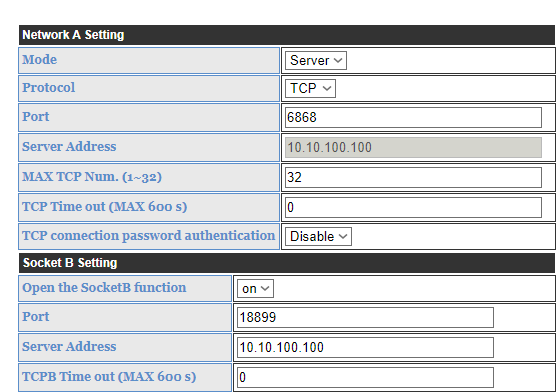
7) Now go to the row labeled "Port" and make sure the number in the box is "6868". If this is not the case make sure to change this number.
8) Now scroll down to the section labeled Socket B Setting
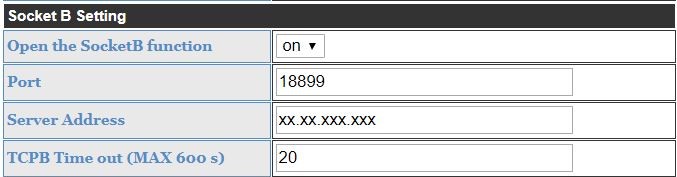
9) Go to the row labeled "Open the SocketB function" and select "on"

10) Next, go to the row labeled "Server Address" and enter 10.10.100.100

11) After all of these settings have been entered, click "Apply" at the bottom of the screen
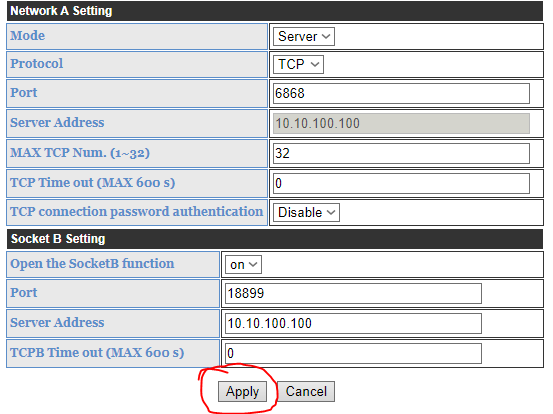
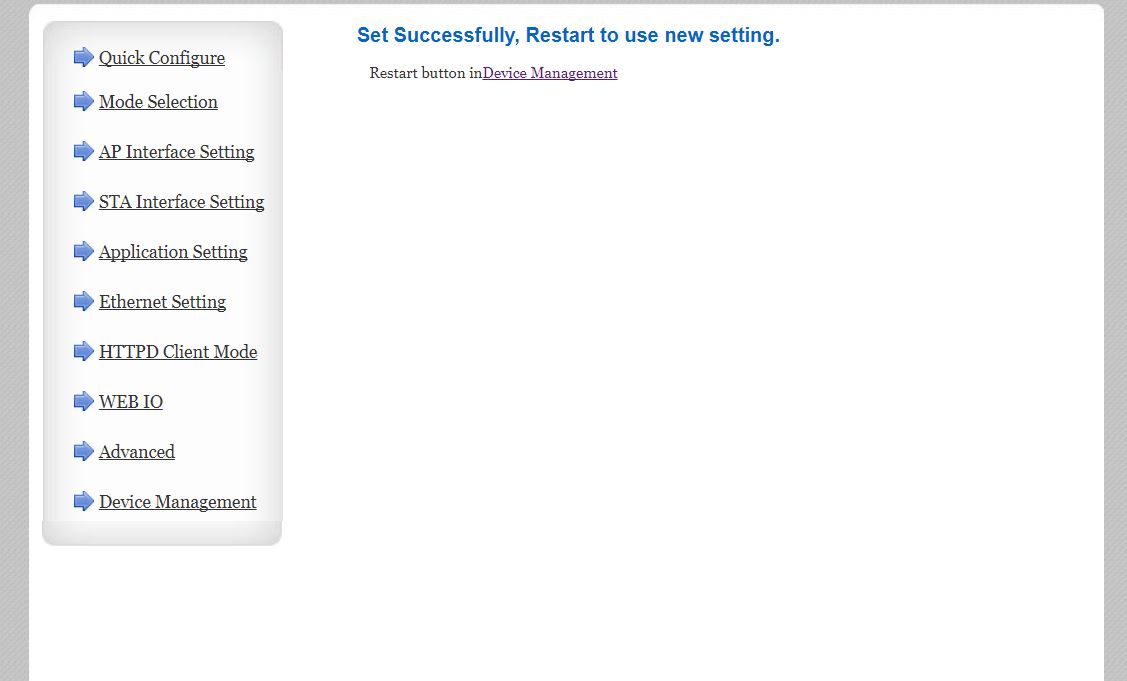
You should see the following screen after clicking Apply:
12) In order to reset, click on Device Management on the left side of the screen
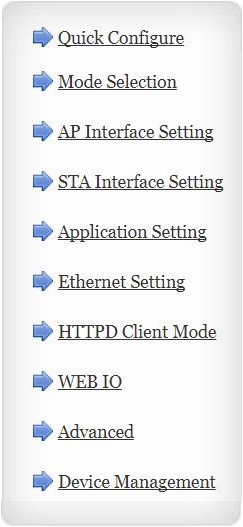
From this page, click "Restart" in the Restart section on the webpage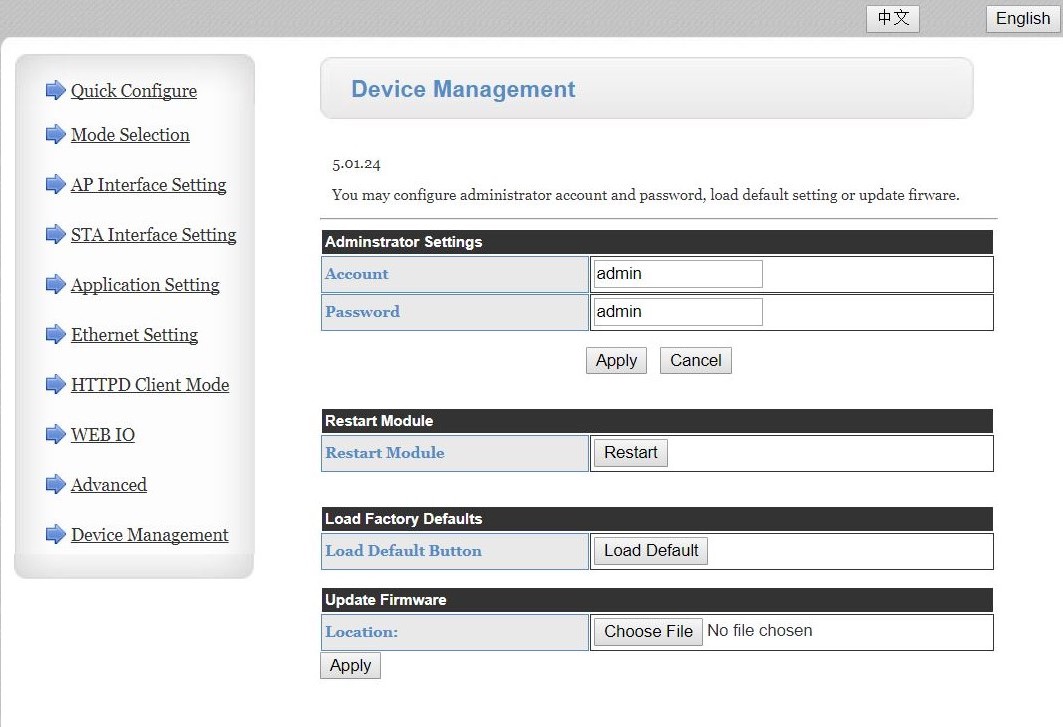
Now you should have no issue logging into the Matrix 8x8 app on your smart phone!
Comments
0 comments
Please sign in to leave a comment.