
This article will demonstrate how to overwrite and save presets for the J-Tech Digital 8x8 HDMI 1080P Matrix Switcher Extender.
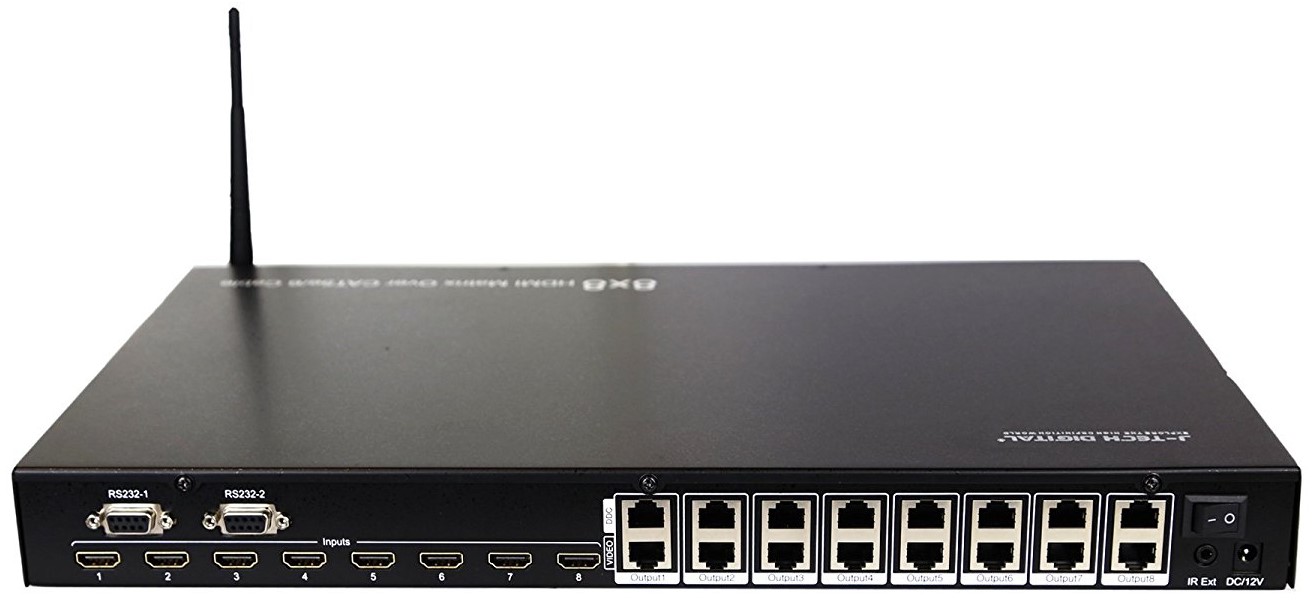
1) To begin, first connect a Serial cable to port RS232-1 on the back of the matrix to connect to a computer.
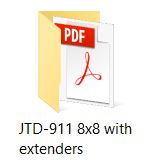
Next, open the [JTD-911 8x8 with extenders] folder. This folder is located on the disc that is included with the Matrix. If you no longer have that disc, you can also download this folder and all of its contents on our website: 8x8 Matrix
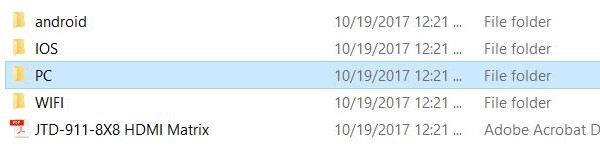
Once in this folder, click on "PC"
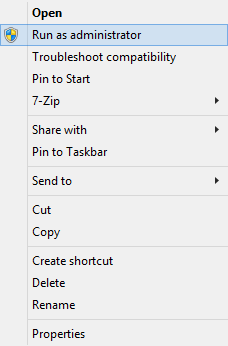
Next right-click on "Matrix-0808 V2.0"
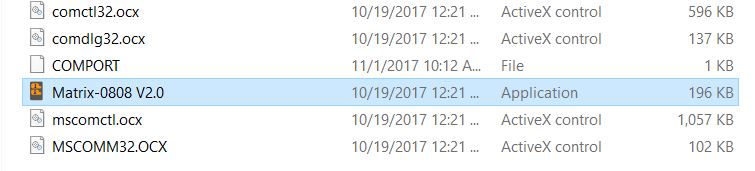
and then click "Run as administrator"
3) You should now see the 8x8 interface on your screen. Note that although you see the interface, the Connect State may show that you are disconnected with a red dot next to it. In order to connect, make sure you have the right Com selected under Com Select
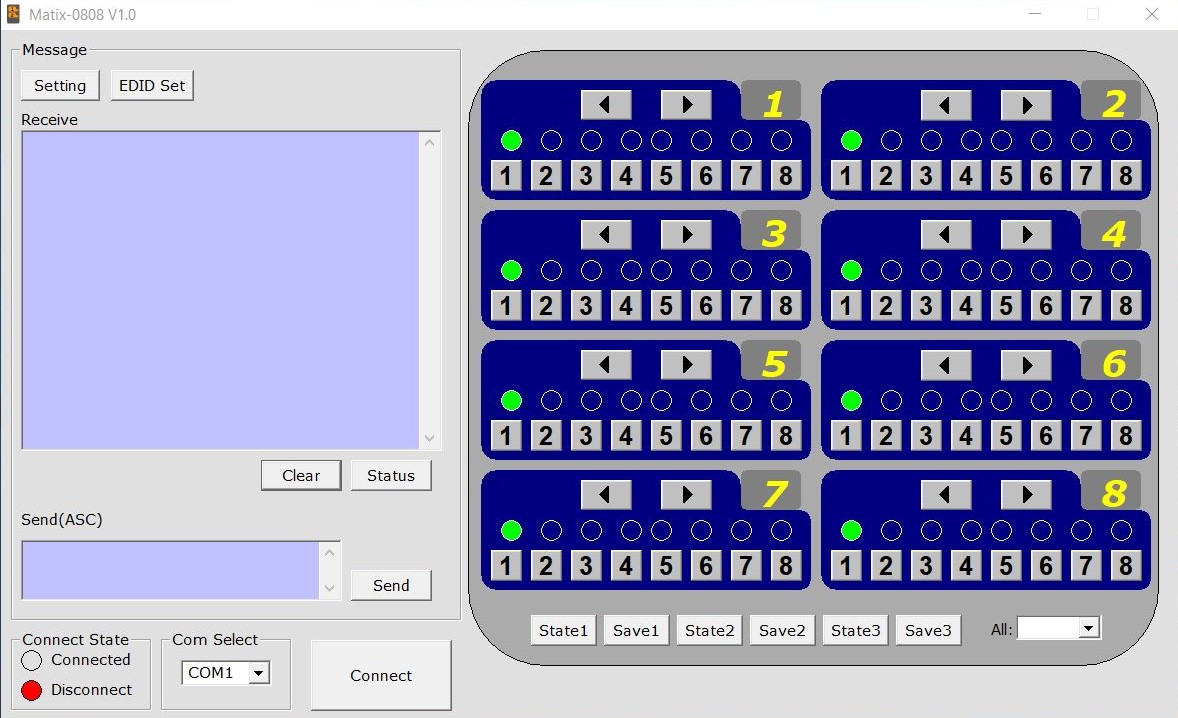
Go to Com Select on the bottom-left side of the window and select the com that you are connected to from the matrix serial port
***If you are not sure how to find out which COM you are plugged in to, follow these next steps***
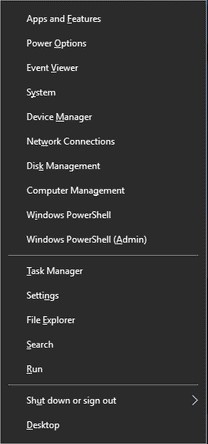
- Right click on Windows/Start button on the bottom left side of the screen
- Click on Device Manager
- Click on Ports (COM & LPT)
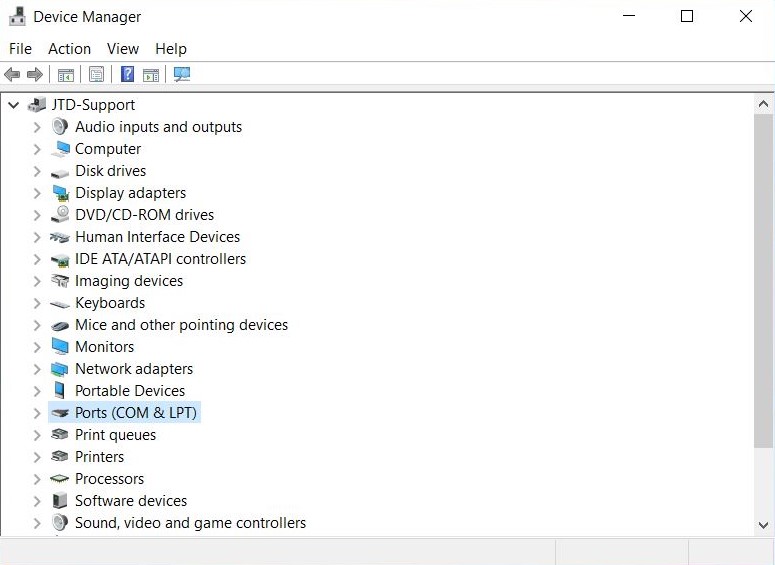
- Find the COM that you are plugged into next and then select the corresponding one
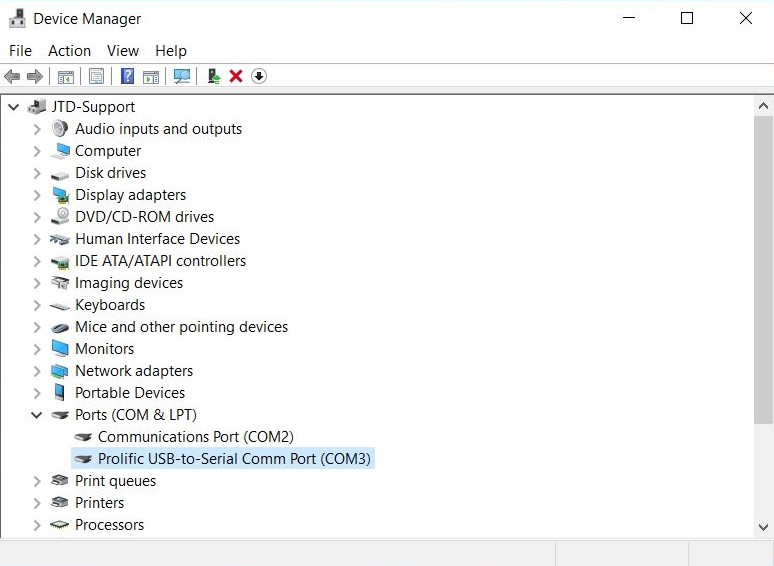
4) After you select the right Com, click Connect and the red dot should now be green next to "Connected" under Connect State
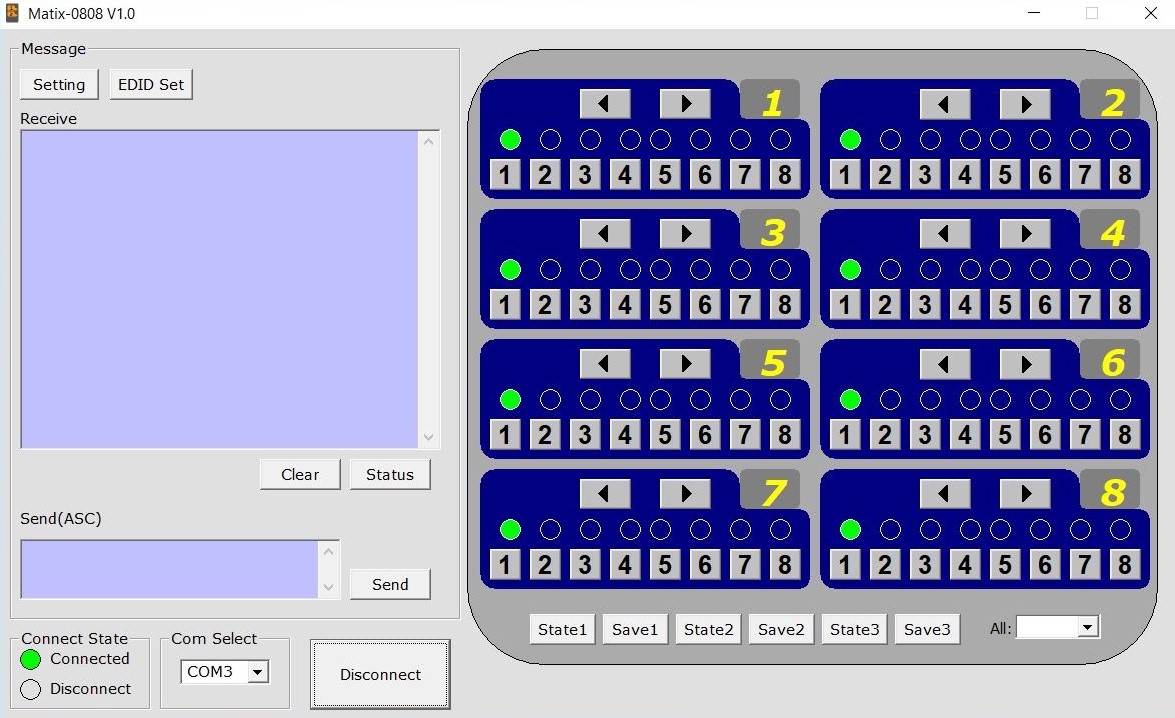
5) Now, click on any of the States or Scenes (State1/State2/State3) to view the input and routing schemes associated with that scene. (In this image, notice that State 1 is selected)
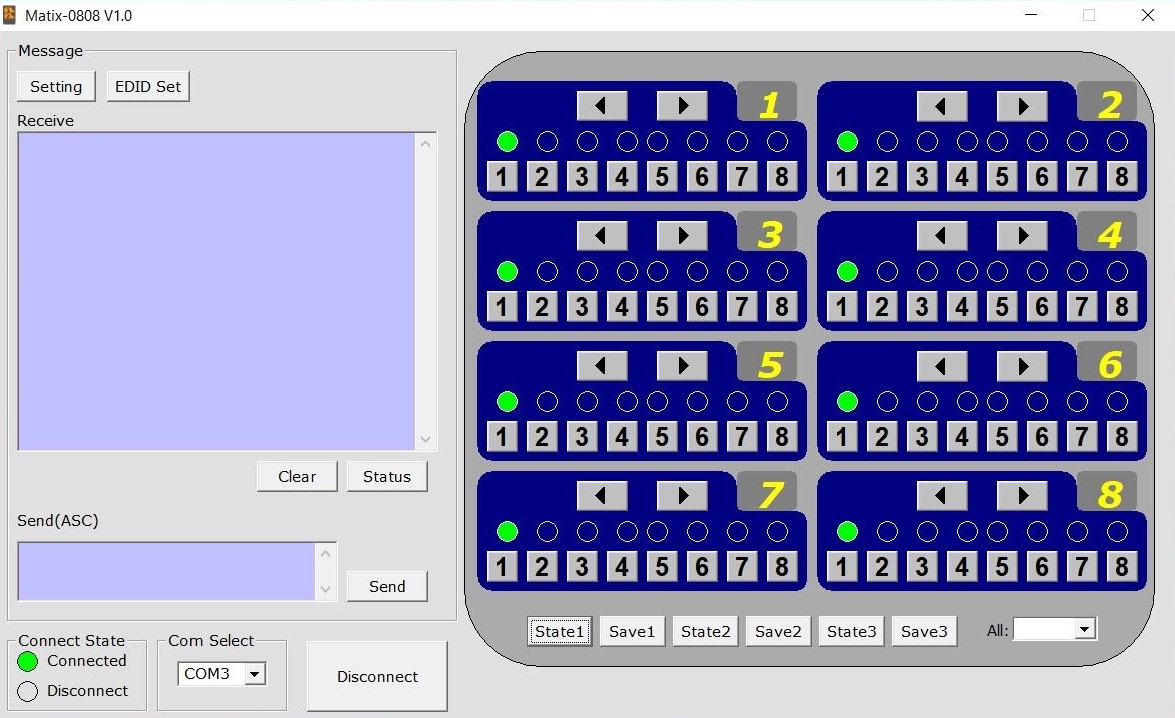
6) Make any changes that you want to your inputs and outputs
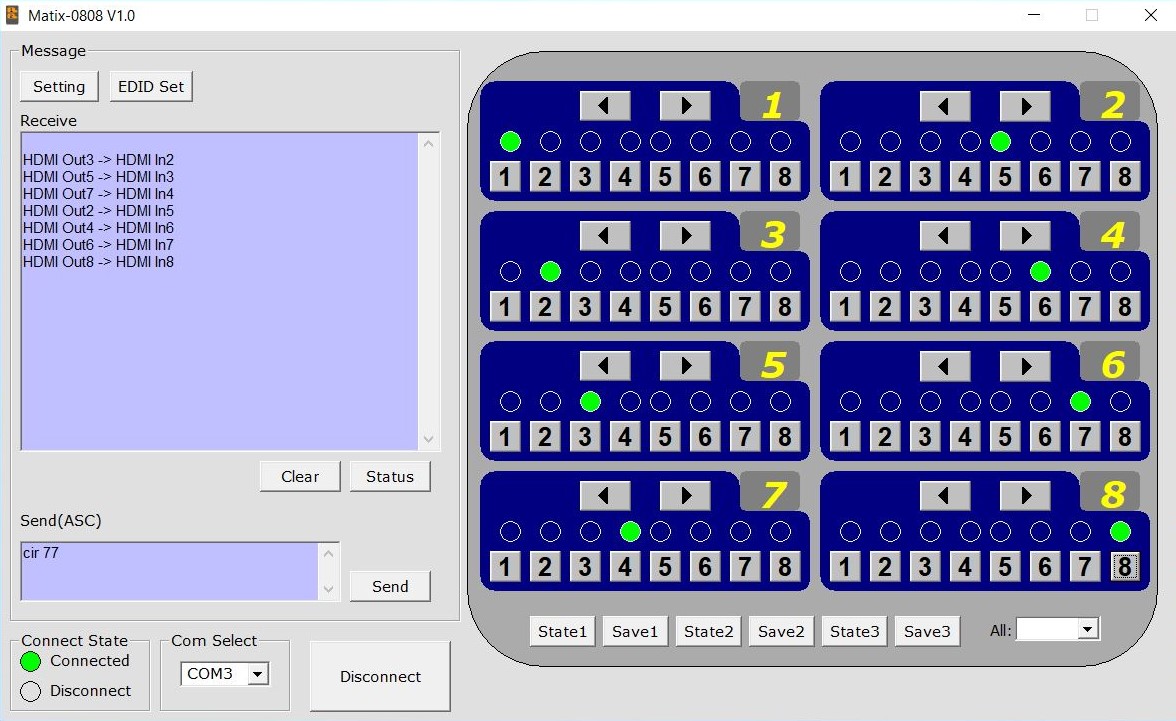
7) After you are satisfied with the changes that you have made, click Save for the corresponding State that you want to keep.
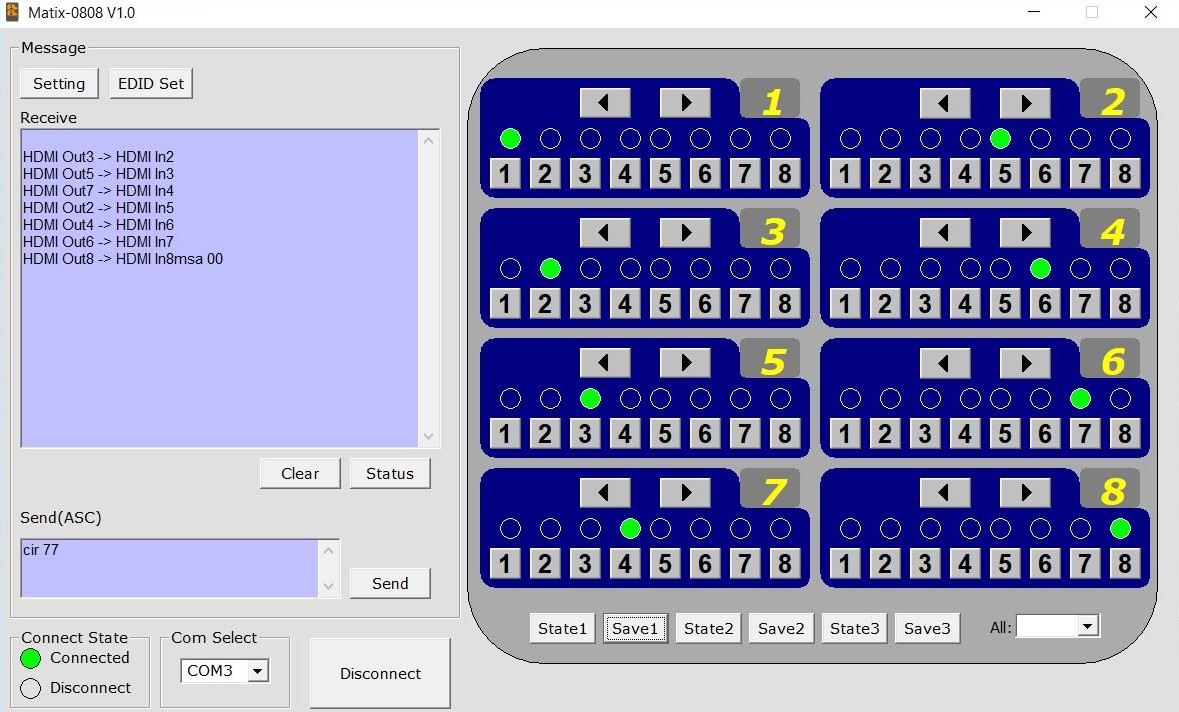
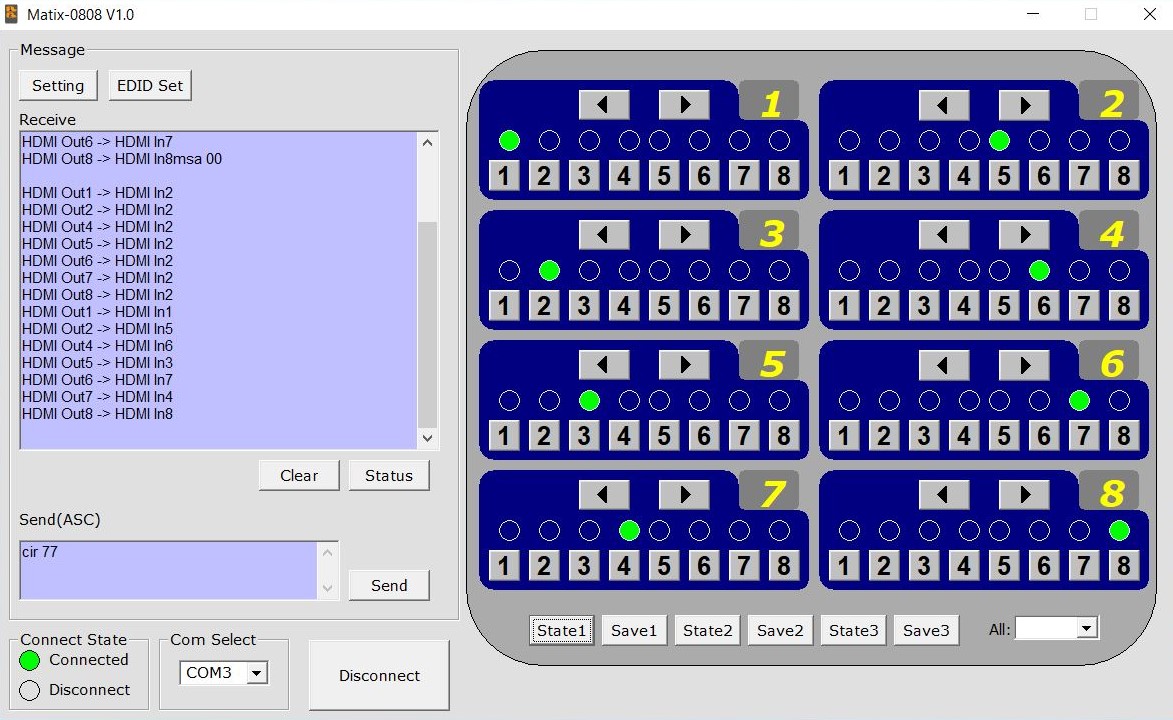
8) To ensure that your settings have been saved, simply click on a different State, and then switch back to the State where you made your changes
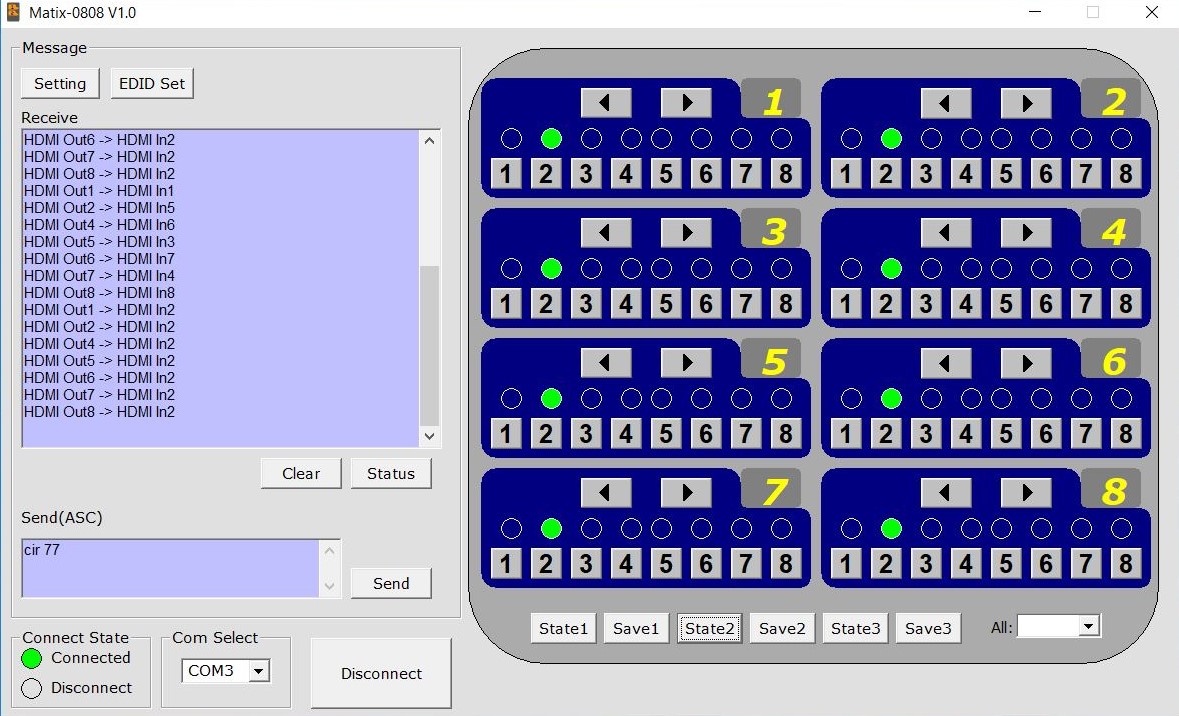
*Note* A screenshot of the settings for State 2 is included, to show that it will revert back to the changes that were saved when State 1 is selected again
Now you have all the information needed to save presets on your Matrix!
Comments
0 comments
Please sign in to leave a comment.